




Names like these, in green, are pages inside your ArmPOS shop. Sign in to your shop to open them.
By the end you will have advertised a job internally, recorded a candidate and their application, and booked an interview, all in one place.
Hiring comes with some plans only. If Recruit isn't under Team & projects in your menu, your plan or your role doesn't include it. ArmPOS keeps your hiring records; it has no public job page and sends nothing to candidates.
1. The job
- Open Recruit › Job Categories once and create the categories you hire in, such as Shop floor.
- Open Recruit › Jobs and click Create.
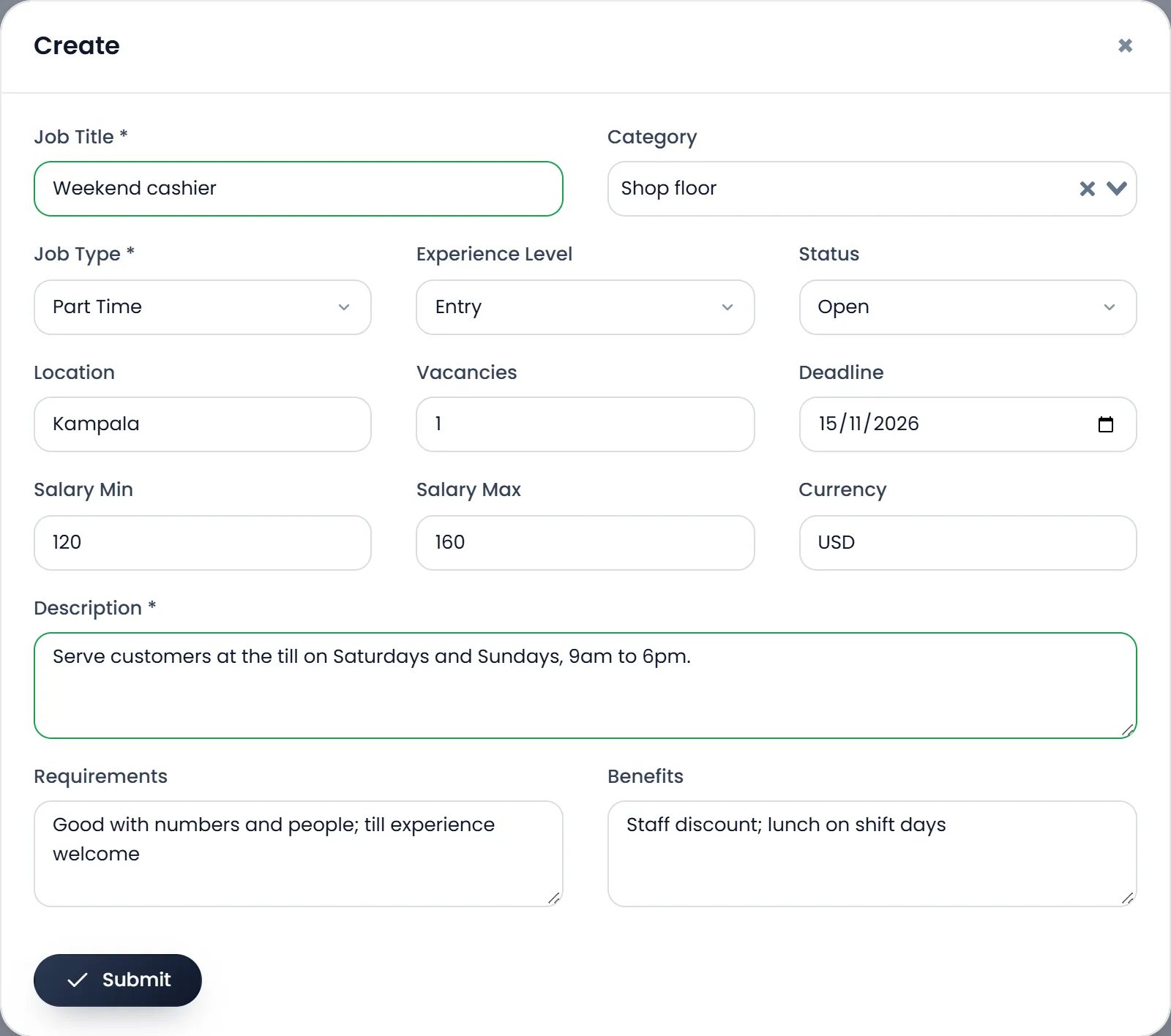
- Fill the Job Title, the Job Type and the Description. All three are required. Job Type is Full Time, Part Time, Contract, Internship or Remote.
- Add the rest: Category, Experience Level, Location, Vacancies, the Deadline, Salary Min and Salary Max with the Currency, Requirements and Benefits.
- Set the Status to Open while you are hiring, and click Submit.
2. The candidate and their application
- Open Recruit › Candidates and click Create. Fill the First_Name, Last_Name and Email (each email once), and anything else you know: Phone, Source (how they heard of you), City, Skills, their CV in Resume. Click Submit.
- Open Recruit › Applications and click Create. Pick the Candidate and the Job, the Stage they are at, the Applied Date, a Rating if you like, and notes. Click Submit.
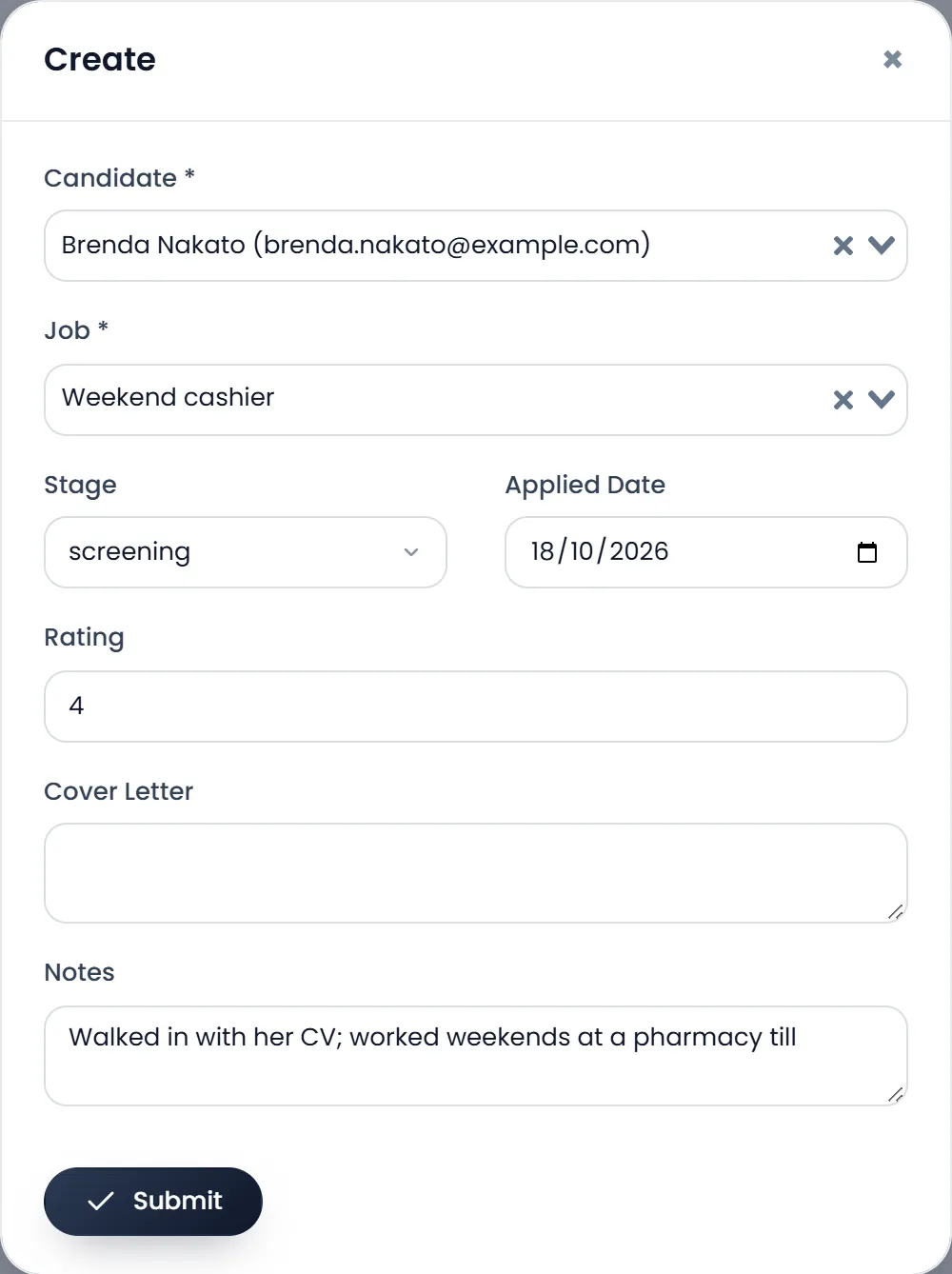
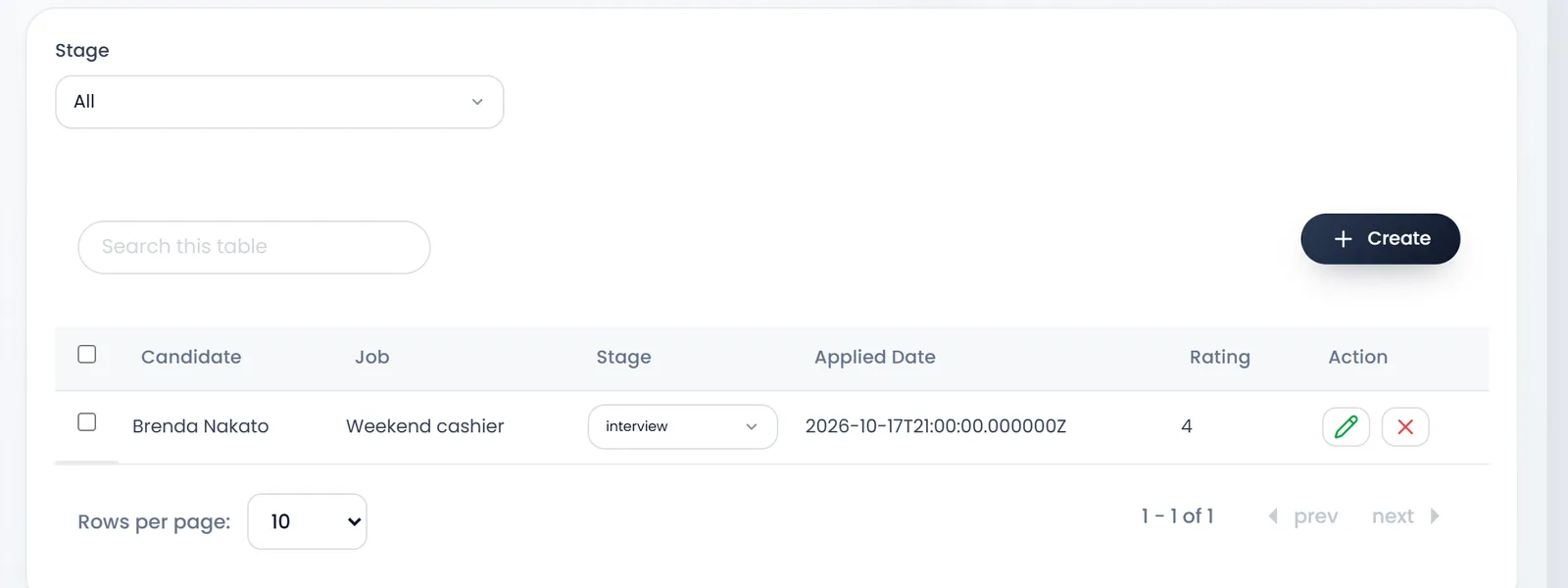
The stages run applied, screening, shortlisted, interview, offered, hired, rejected. Change it on the application's row as the candidate moves along.
3. The interview
Open Recruit › Interviews, click Create, pick the Application, the Type (phone, video, in person, technical, panel or group) and when it is Scheduled At, add the Duration, Location or Meeting Link, and click Submit. The application moves to the interview stage by itself. After the interview, open it again to set its Status, a Rating and your Feedback.
Where things stand
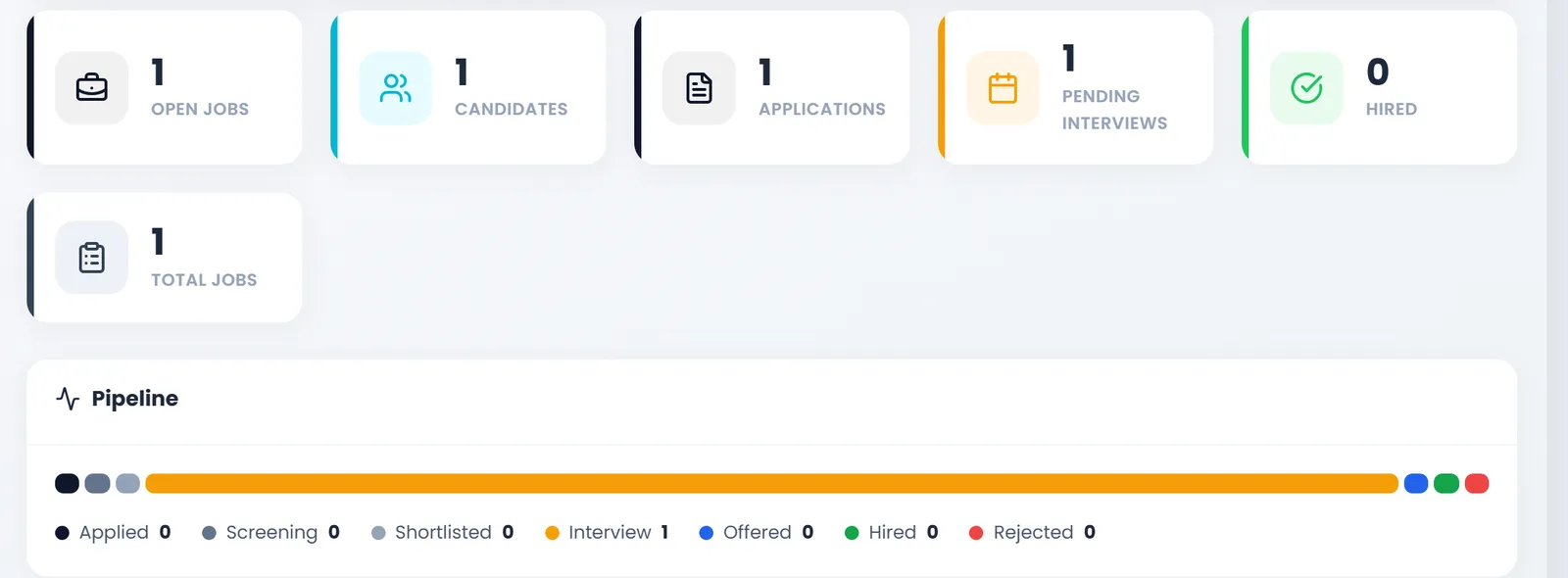
Recruit › Dashboard counts the Open Jobs, Candidates, Applications, Pending Interviews and Hired, shows the pipeline stage by stage, and lists recent applications and upcoming interviews. Reports adds the same figures over time.
Marking a candidate hired doesn't add them to HR: add them as an employee yourself, see Employees.
Times in the hiring lists show in world time (UTC), so they read a few hours off your own: check the interview's own page for the time you set.
What's next
Still stuck?
Write to us and a person answers. If you already have a shop, Ask support inside it sends us the page you're on.
Contact usAsk your AI assistant
ChatGPT, Claude and Gemini can read every guide and walk you through it.
Set it up