




Names like these, in green, are pages inside your ArmPOS shop. Sign in to your shop to open them.
By the end you'll find any booking in seconds, and move its dates or rooms, cancel it, or mark a no-show.
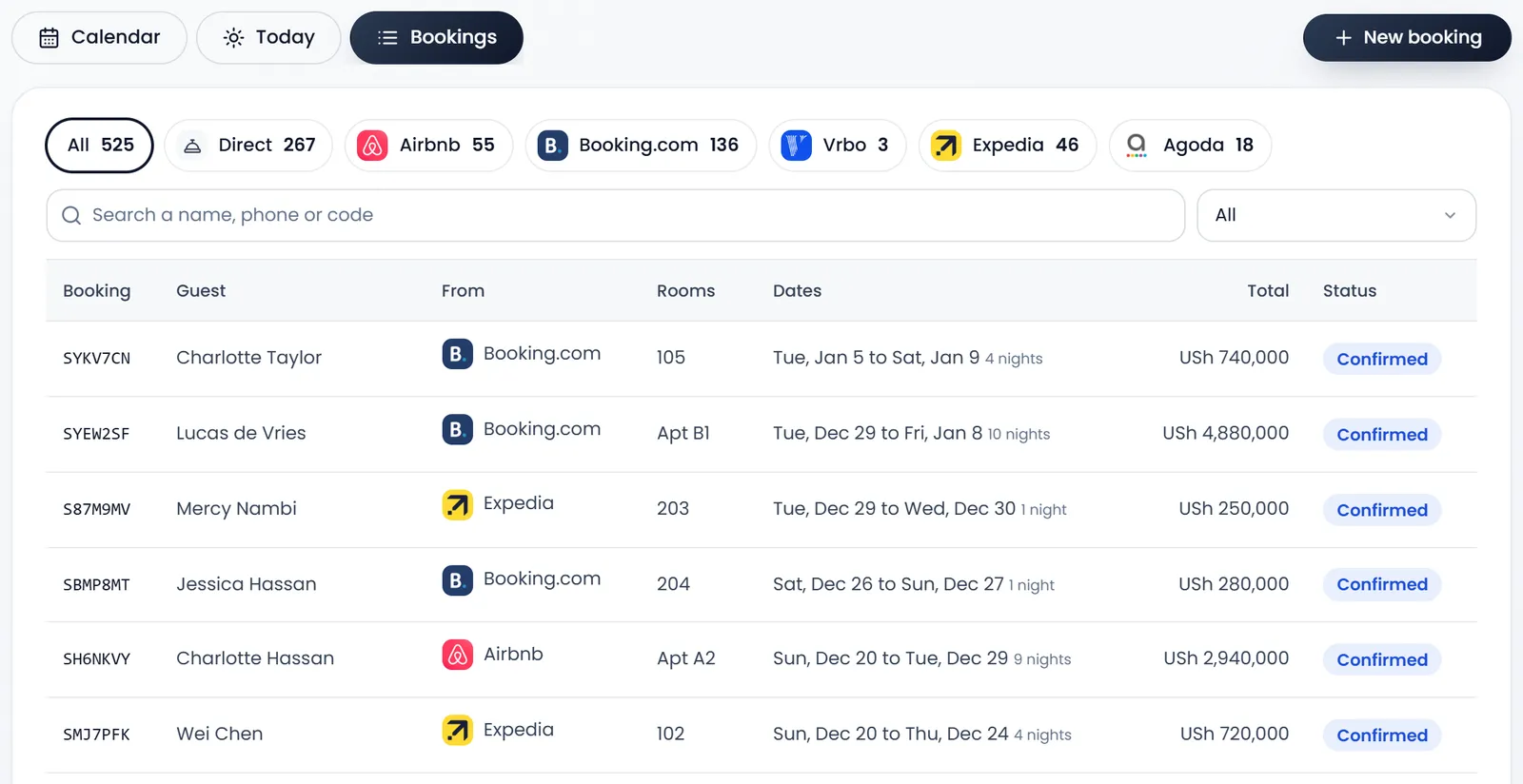
Find a booking
Open Bookings.
- Search a name, a phone number or a booking code.
- The pills at the top show the bookings from one source: Direct (made at the desk) or a travel site. Each counts its bookings.
- The list beside the search shows the bookings Coming, or All of them.
Click a booking to open it.
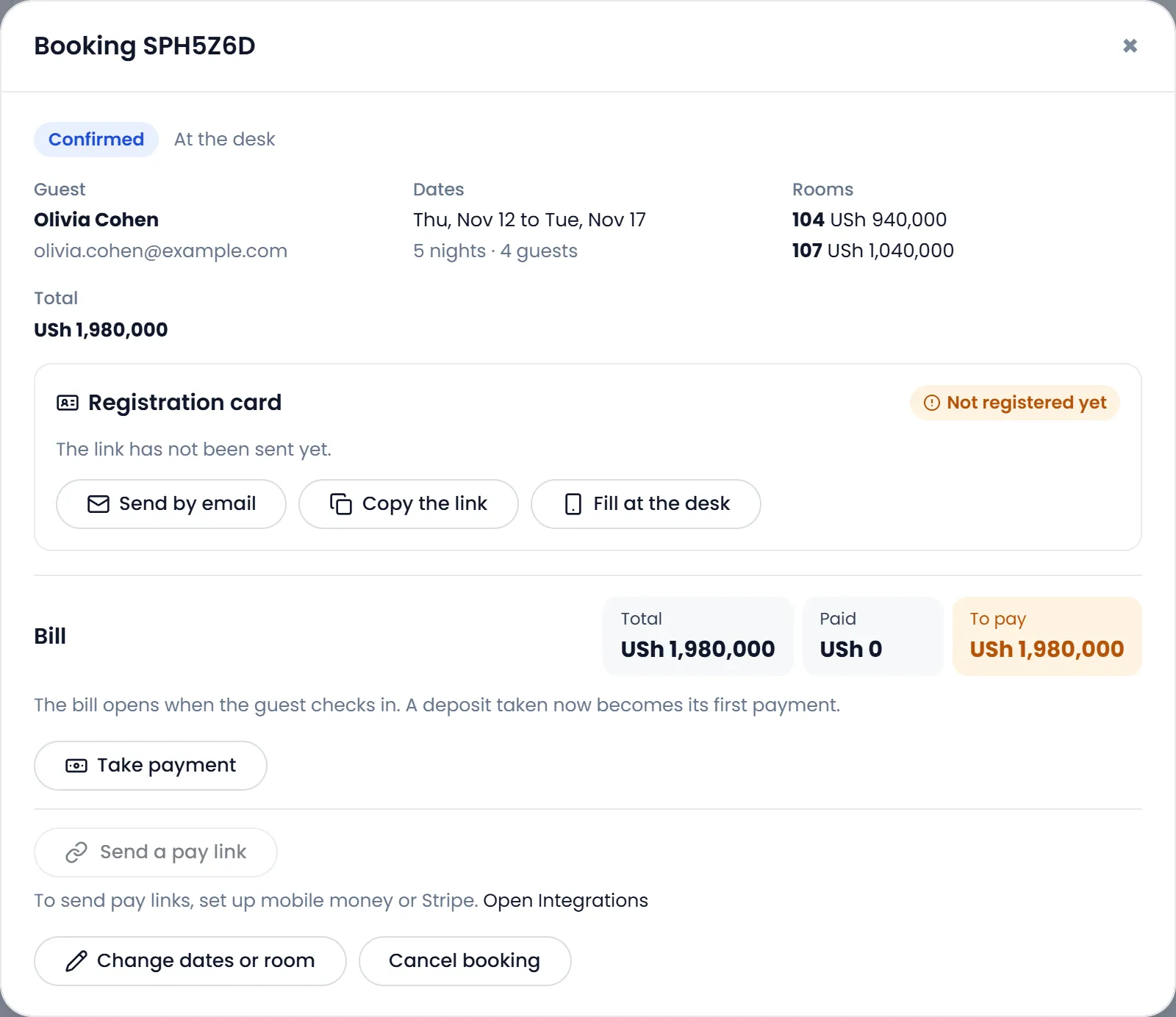
Change the dates or rooms
- Open the booking and click Change dates or room.
- Change Check-in or Check-out.
- For each room, keep it or pick another room free on those nights.
- Click Save changes.
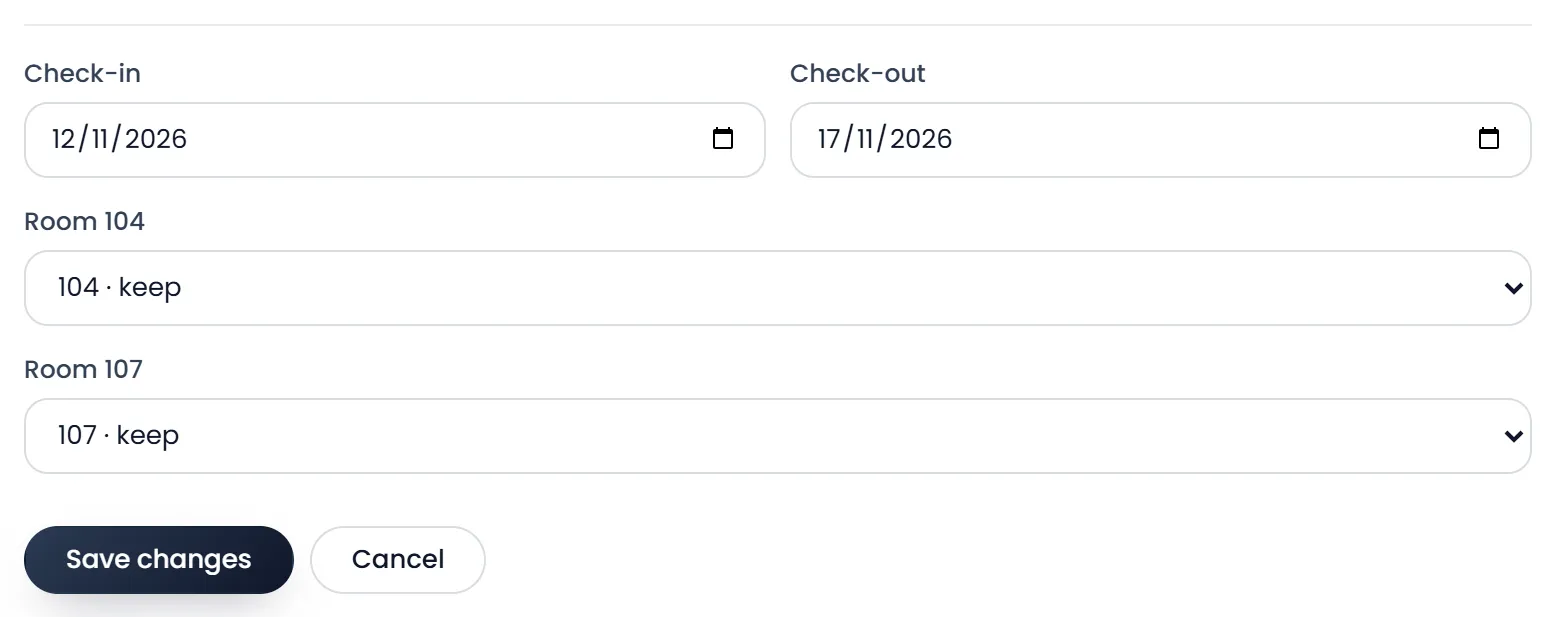
The price follows the new nights.
Cancel, or mark a no-show
- Cancel booking: the guest isn't coming. The desk asks first, then its rooms are free again.
- No-show: the guest never came. The desk asks first, then its rooms are free again.
Money the guest already paid is kept, and shows on the bill as Deposit kept.
A deposit that hasn't come
A booking Waiting for deposit lets its rooms go when its hold runs out. Take the deposit on its bill to confirm it, or click Confirm without a deposit.
A booking with no room
A travel site can sell a night when no room of that type is free. The booking shows No room yet. Click Place a room (on Today, or the calendar's bar of bookings with no room) and choose one.
If two sites sold the same room, Room … is sold twice shows at the top of Today and Bookings: see Booking sites.
What's next
Still stuck?
Write to us and a person answers. If you already have a shop, Ask support inside it sends us the page you're on.
Contact usAsk your AI assistant
ChatGPT, Claude and Gemini can read every guide and walk you through it.
Set it up