




Names like these, in green, are pages inside your ArmPOS shop. Sign in to your shop to open them.
By the end every booking will start from your check-in times and deposit, and your guests will fill their registration card and agree to your house rules on their phone, before they arrive.
All three settings are on Property, under Rooms and rates. On each tab, What the guest sees shows the guest's screen as you change it.
Check-in and deposits
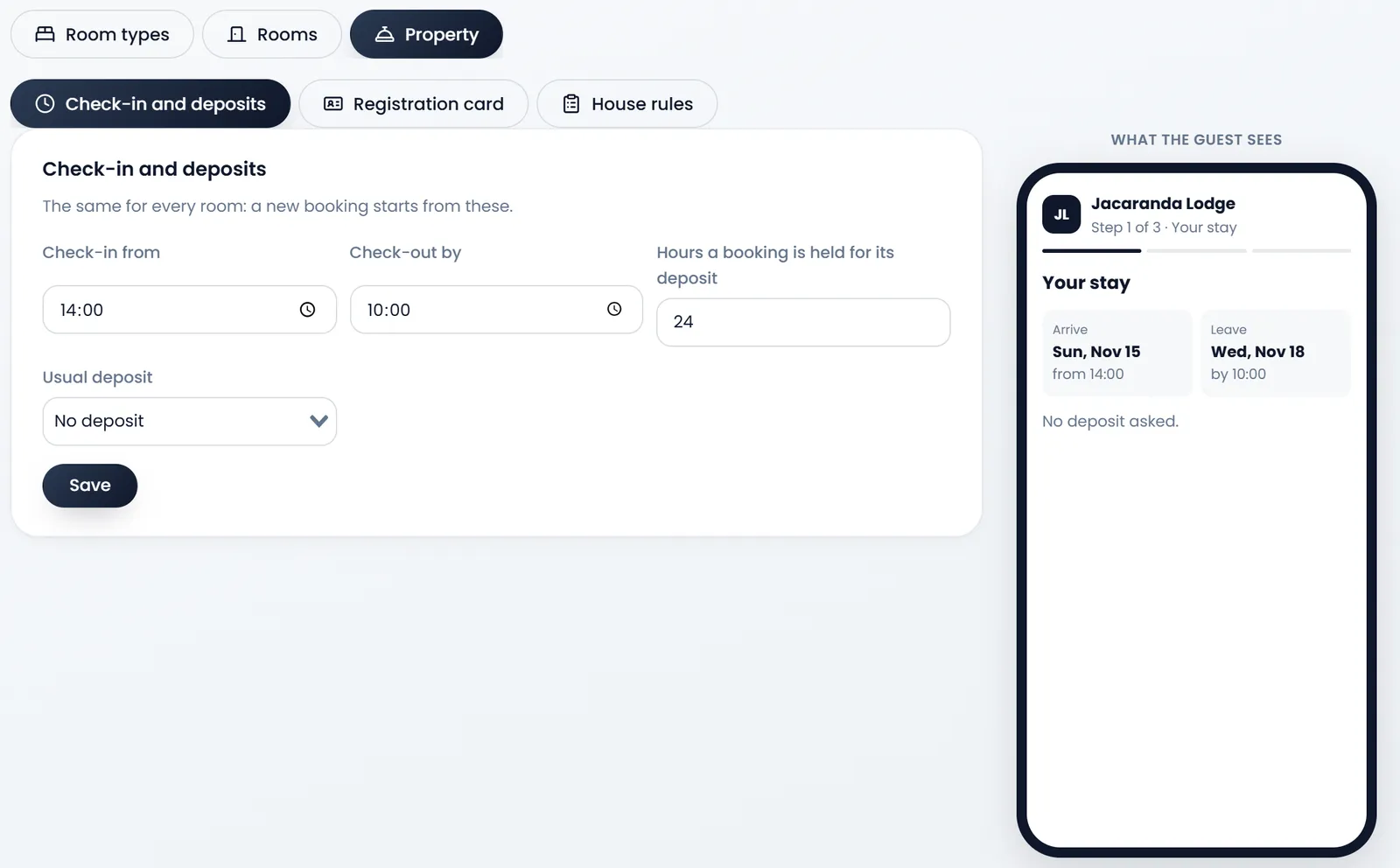
- Check-in from and Check-out by: the times every booking shows.
- Hours a booking is held for its deposit: a booking waiting for its deposit lets its rooms go after this.
- Usual deposit: what a new booking starts with. You can change it on each booking.
Click Save.
The registration card
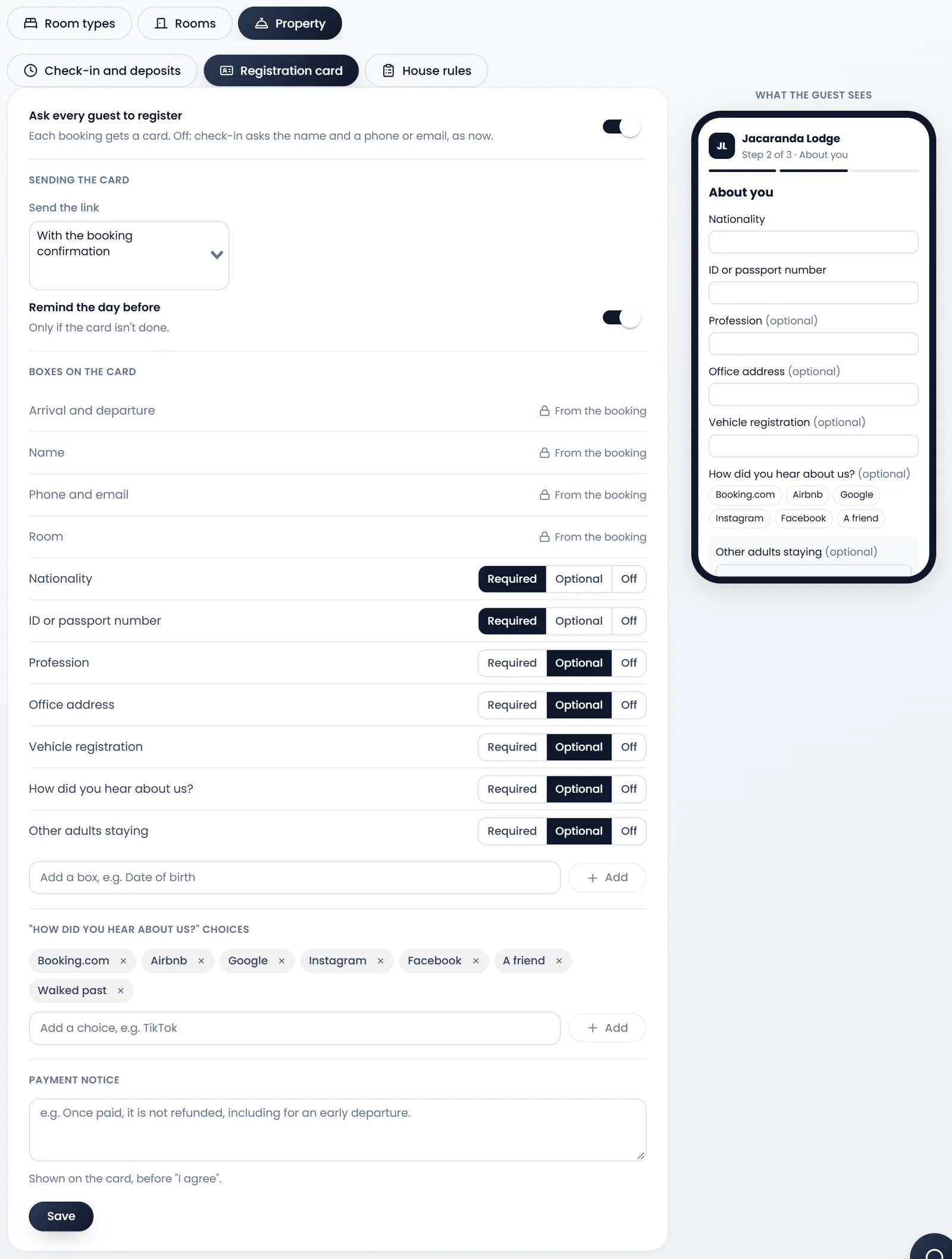
- Switch on Ask every guest to register. Each booking then gets a card. Off, check-in only asks a name and a phone or email.
- Send the link: With the booking confirmation, or 2 days before arrival. Remind the day before sends it again if the card isn't done.
- Boxes on the card. The dates, name, phone and email and room come from the booking. Set each other box to Required, Optional or Off. Add a box for your own, such as a date of birth.
- "How did you hear about us?" choices: remove the ones you don't want, add your own.
- Payment notice, if you have one: it shows on the card before the guest agrees.
- Click Save.
New cards use what you saved. Cards already agreed keep theirs.
House rules
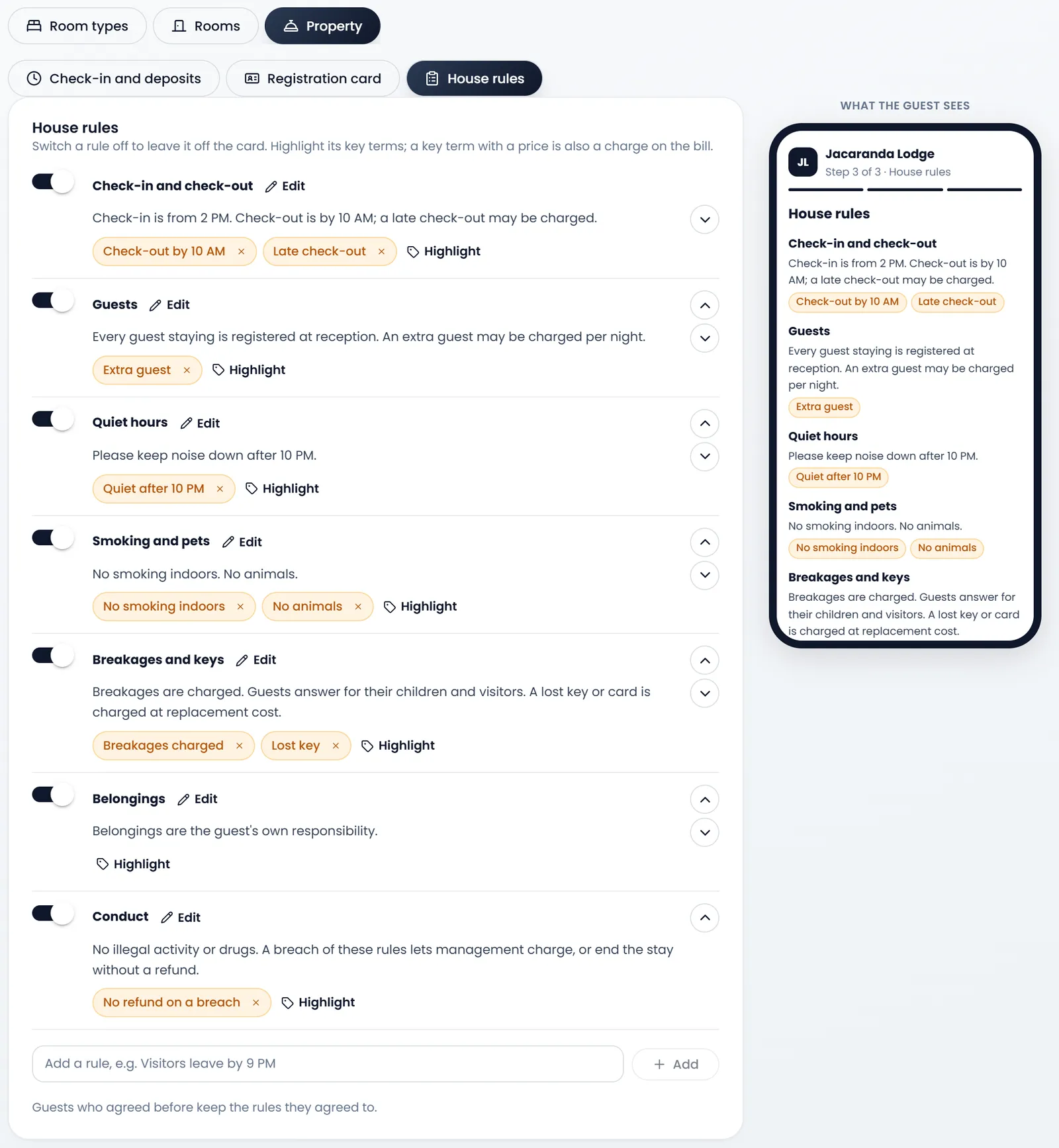
Click Start from the usual rules for seven common rules in words you can edit, or Add a rule of your own.
- The switch leaves a rule off the card without deleting it.
- Edit changes a rule's name and words.
- Highlight marks its key terms on the card, such as "Check-out by 10 AM".
- A key term with a price (Once, A night or Each) is also a charge: one tap on the guest's bill. See The guest's bill.
Guests who agreed before keep the rules they agreed to.
On each booking
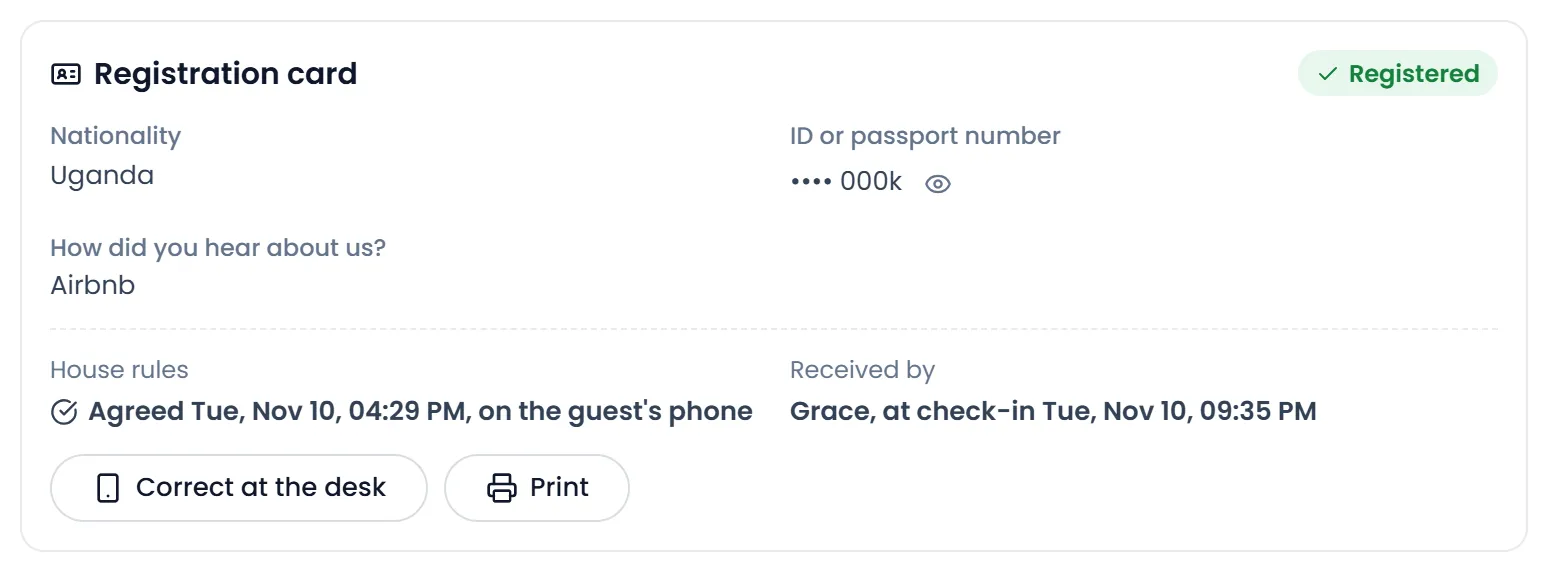
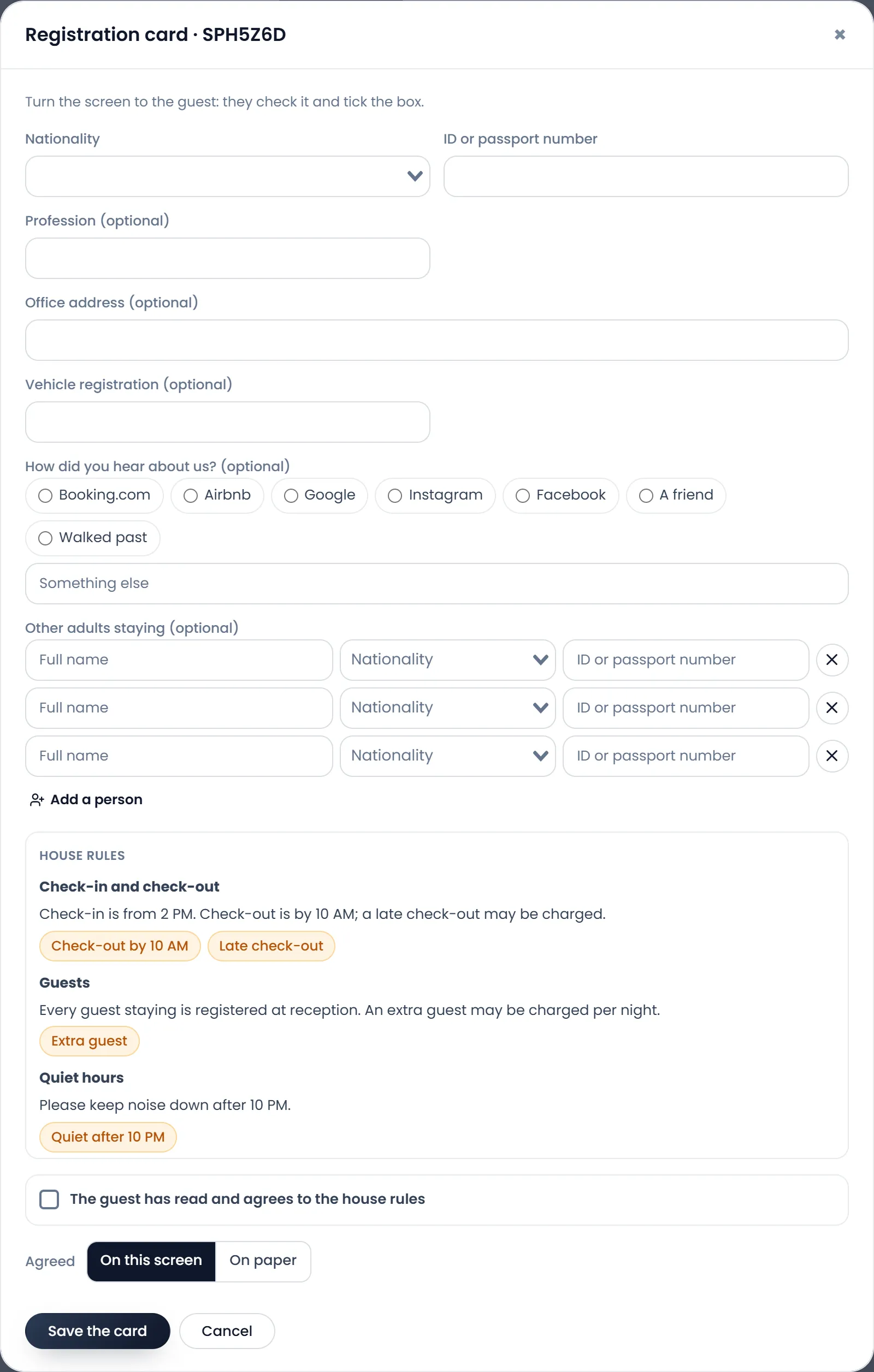
The booking's Registration card says Registered, Card opened, not finished or Not registered yet.
- Send by email, Send by WhatsApp (when the guest gave a number) or Copy the link: the guest fills it on their phone, in three steps: their stay, about them, and the house rules.
- Fill at the desk: fill it with the guest. Turn the screen to them to check it and tick the box, or choose On paper if they signed a paper card.
- Correct at the desk changes a card already filled. Print prints it.
The ID number shows its last characters only. The eye shows the whole number.
What's next
Still stuck?
Write to us and a person answers. If you already have a shop, Ask support inside it sends us the page you're on.
Contact usAsk your AI assistant
ChatGPT, Claude and Gemini can read every guide and walk you through it.
Set it up