




Names like these, in green, are pages inside your ArmPOS shop. Sign in to your shop to open them.
By the end you will have set up the categories your shop spends money on and recorded an expense in one of them.
Expenses sit under Accounting, which comes with some plans only. If Accounting isn't in your menu, your plan or your role doesn't include it.
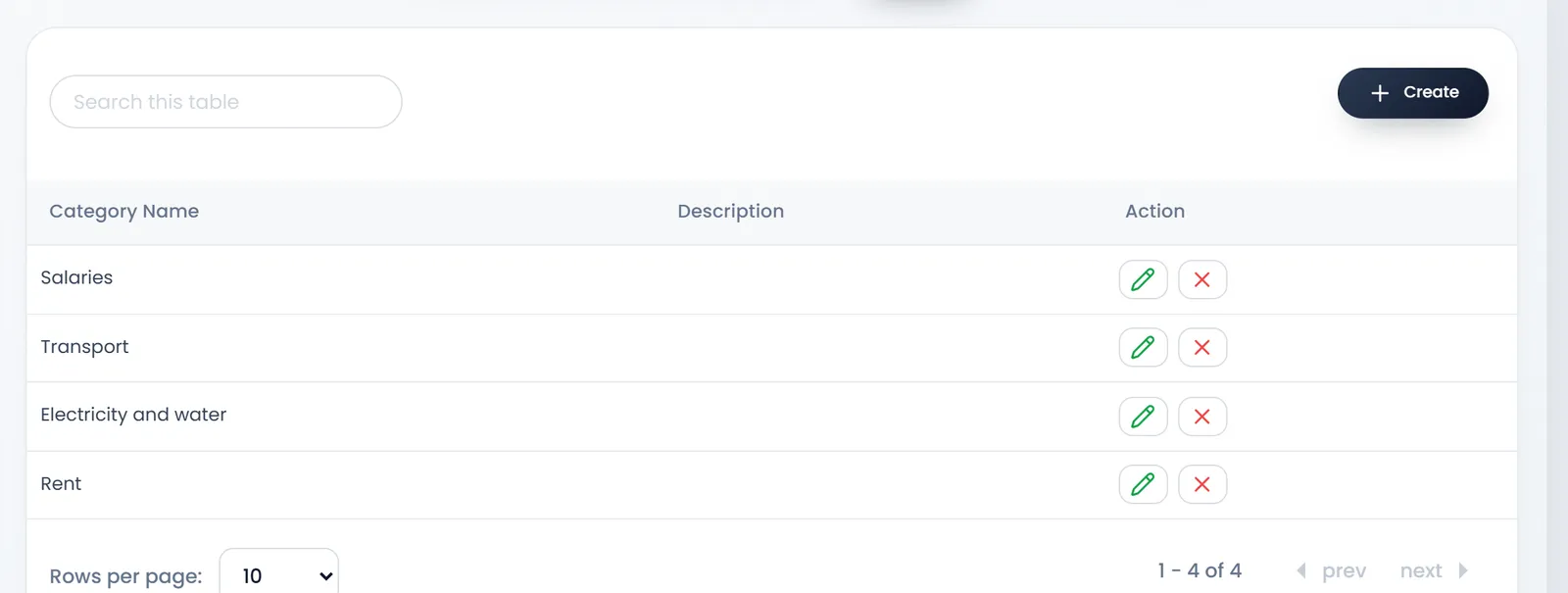
Create the categories
Categories group your spending in the reports, for example rent, electricity or wages. Create them once.
- Open Accounting › Expense Category.
- Click Create.
- Enter the Category Name. It is required. Description is optional.
- Click Submit.
Record an expense
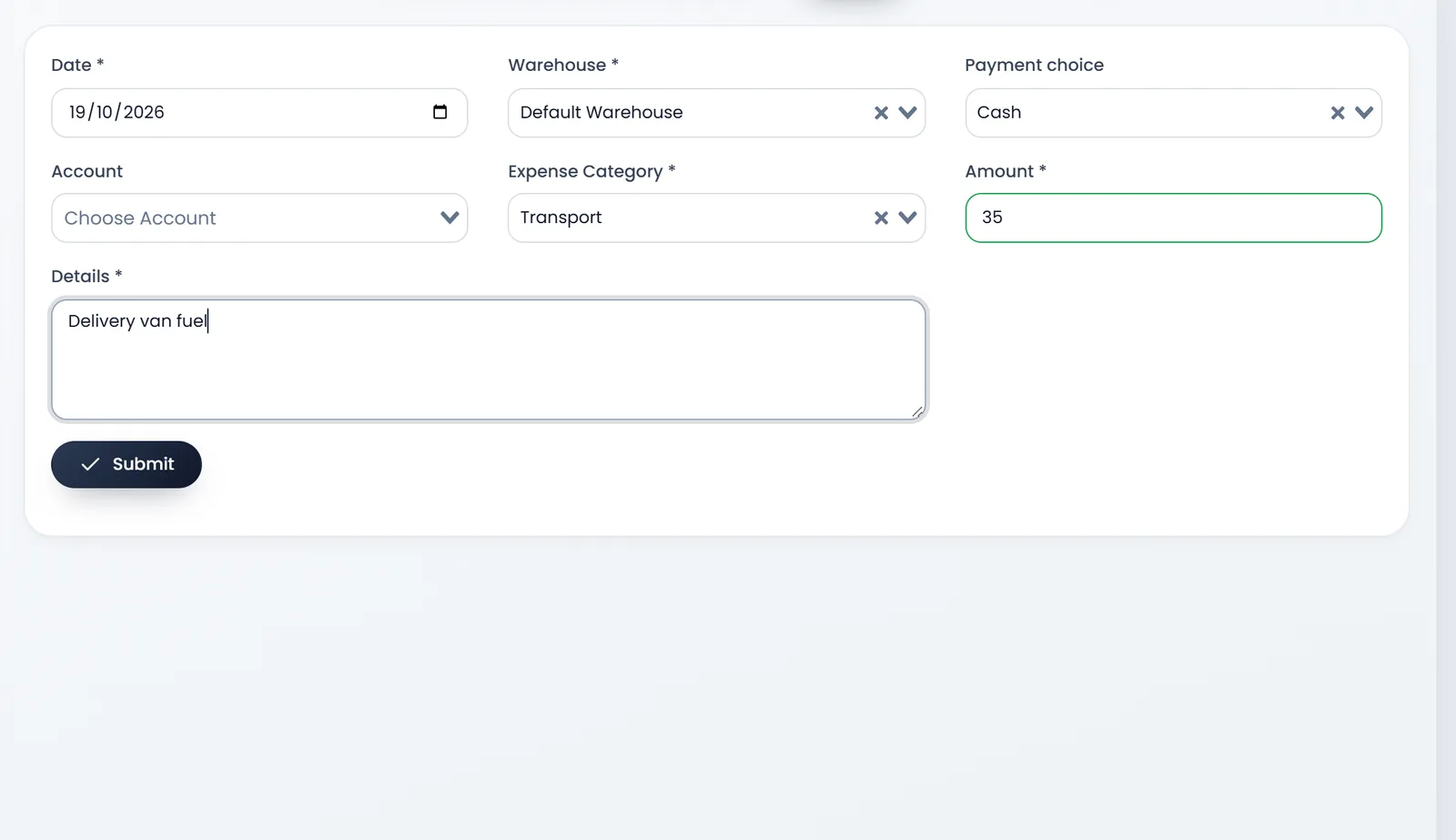
- Open Accounting › Create Expense.
- Fill Date and Warehouse. Both are required. Pick the warehouse the money was spent for.
- Pick the Payment choice. For example Cash or bank transfer. It is required, although its label has no *.
- Choose an Account if you track accounts. The expense is taken off that account's balance.
- Pick the Expense Category. It is required.
- Enter the Amount and the Details. Both are required. Details says what the money was for.
- Click Submit. You land on All Expenses.
Find it again
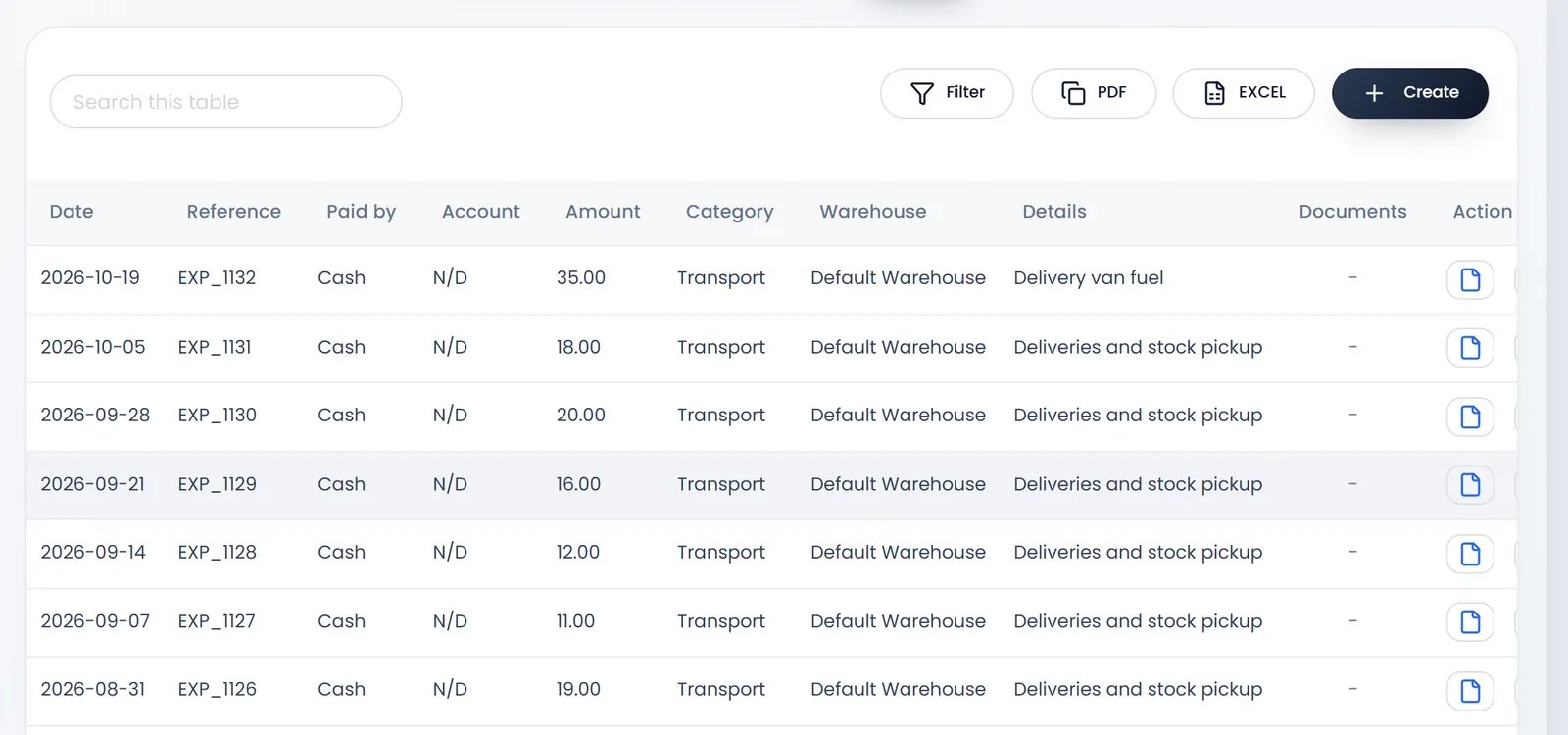
- Accounting › All Expenses lists every expense with its Date, Reference (EXP_ and a number), Paid by, Account, Amount, Category, Warehouse and Details. Edit or delete one from its row.
- The file icon on a row, Attach Documents, keeps a copy of the bill with the expense: a PDF, an image or an office document.
- Reports › Expense Report totals your expenses by category.
- Reports › Profit and Loss shows Expenses for the period and takes them off your net profit.
What's next
See where expenses fit in the day's numbers in Reports to check every day.
Still stuck?
Write to us and a person answers. If you already have a shop, Ask support inside it sends us the page you're on.
Contact usAsk your AI assistant
ChatGPT, Claude and Gemini can read every guide and walk you through it.
Set it up