




Names like these, in green, are pages inside your ArmPOS shop. Sign in to your shop to open them.
By the end each kind of room a guest can book will have its price a night, its beds and what's in it, ready to sell at the desk and on travel sites.
A room type is what a guest books: Deluxe King, Family Room, Garden Cottage. Every room belongs to a type, so add the type first, then its rooms.
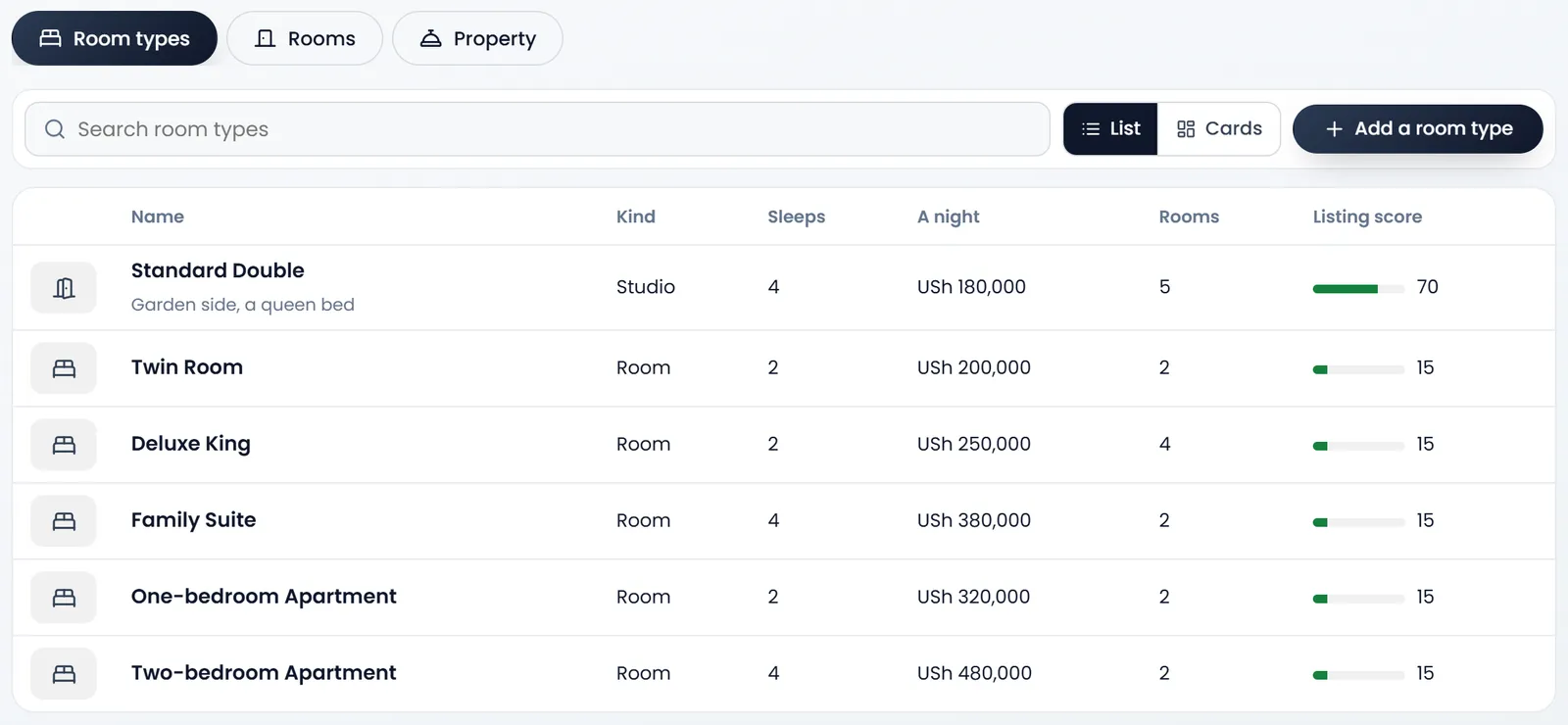
Add a room type
- Open Room types and click Add a room type.
- Basic information. Type the Name and pick the Kind (Room, Suite, Apartment, Studio, Villa, Cottage, Tent, Dorm bed). The Short line, View, Size and Description are optional, and they're what a guest reads.
- Photos and video. Click Add photos, or drop them on the box. Six are recommended. The first is the cover; drag a photo to change the order. For a Video tour, paste a YouTube or Vimeo link and click Save link.
- Guests and beds. Set how many Adults, Children and Infants the room sleeps, then Add a bed for each kind of bed. Switch on Extra bed if you have one on request.
- Amenities. Search and pick what's in the room.
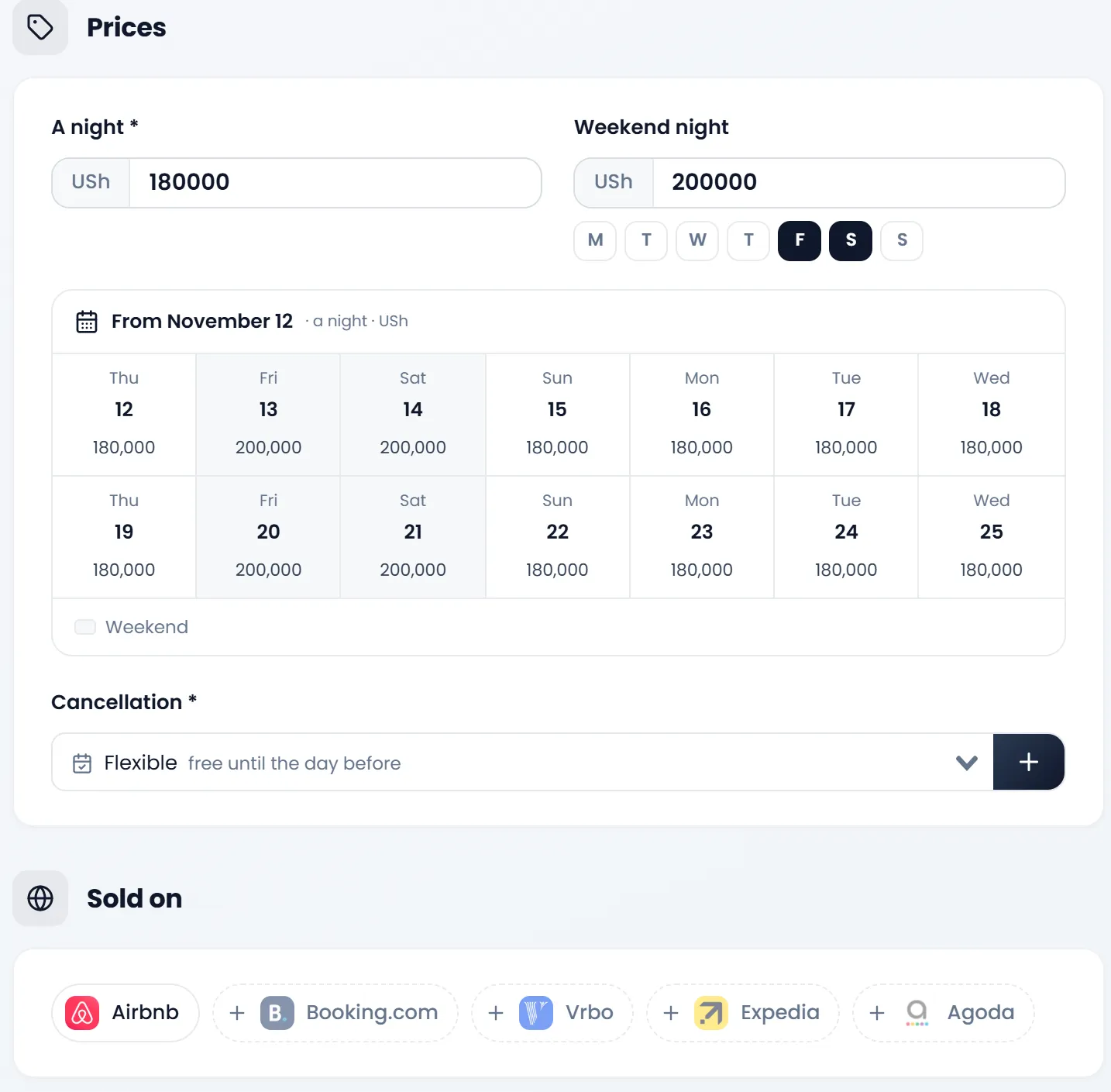
- Prices. Type the price A night. A different Weekend night price applies to the days you pick under it (Friday and Saturday to start). Pick a Cancellation policy.
- Click Save room type.
Photos upload when you save. A list that doesn't have what you need (a kind, a view, a bed, an amenity, a policy) takes your own: type it, then add it with +.
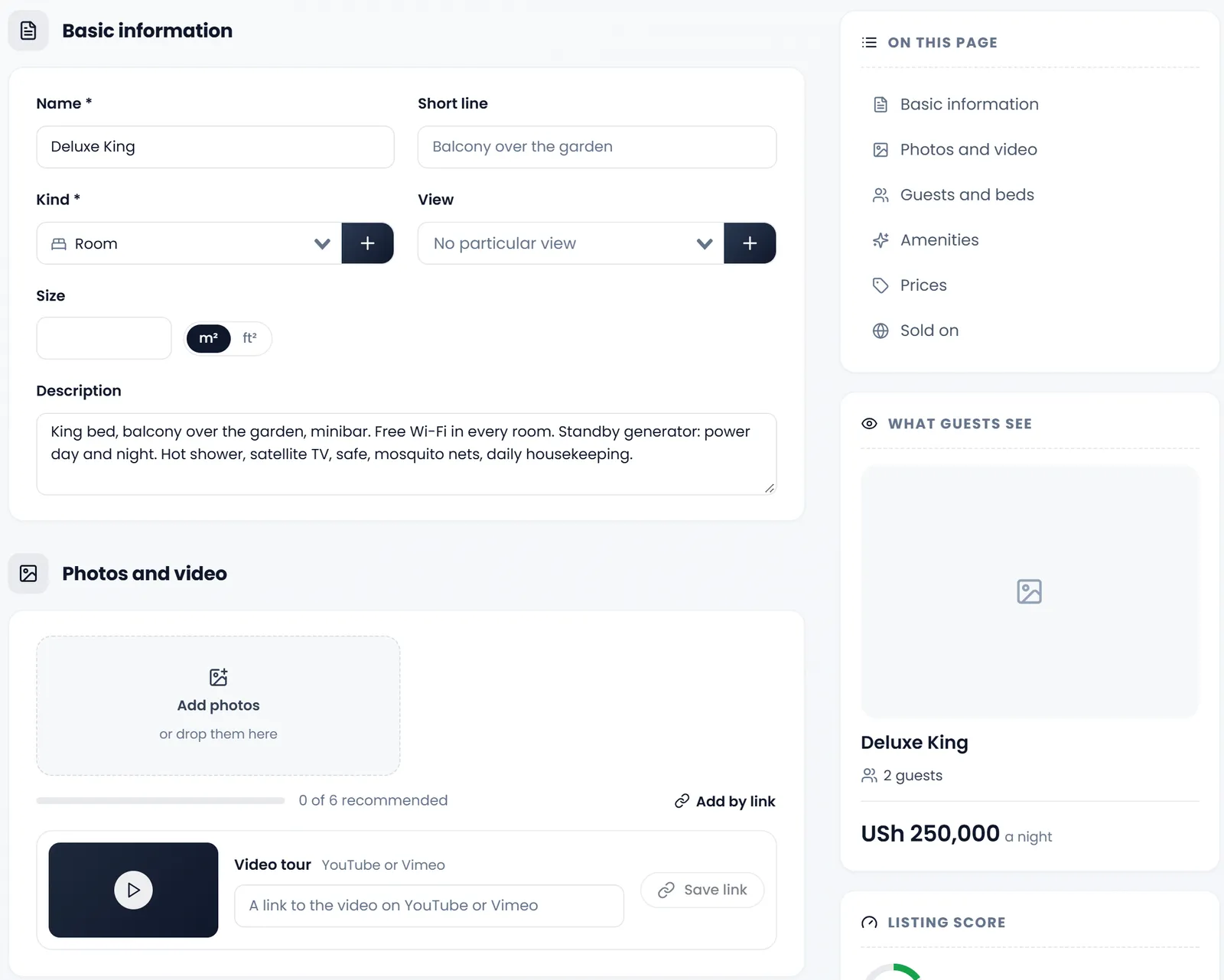
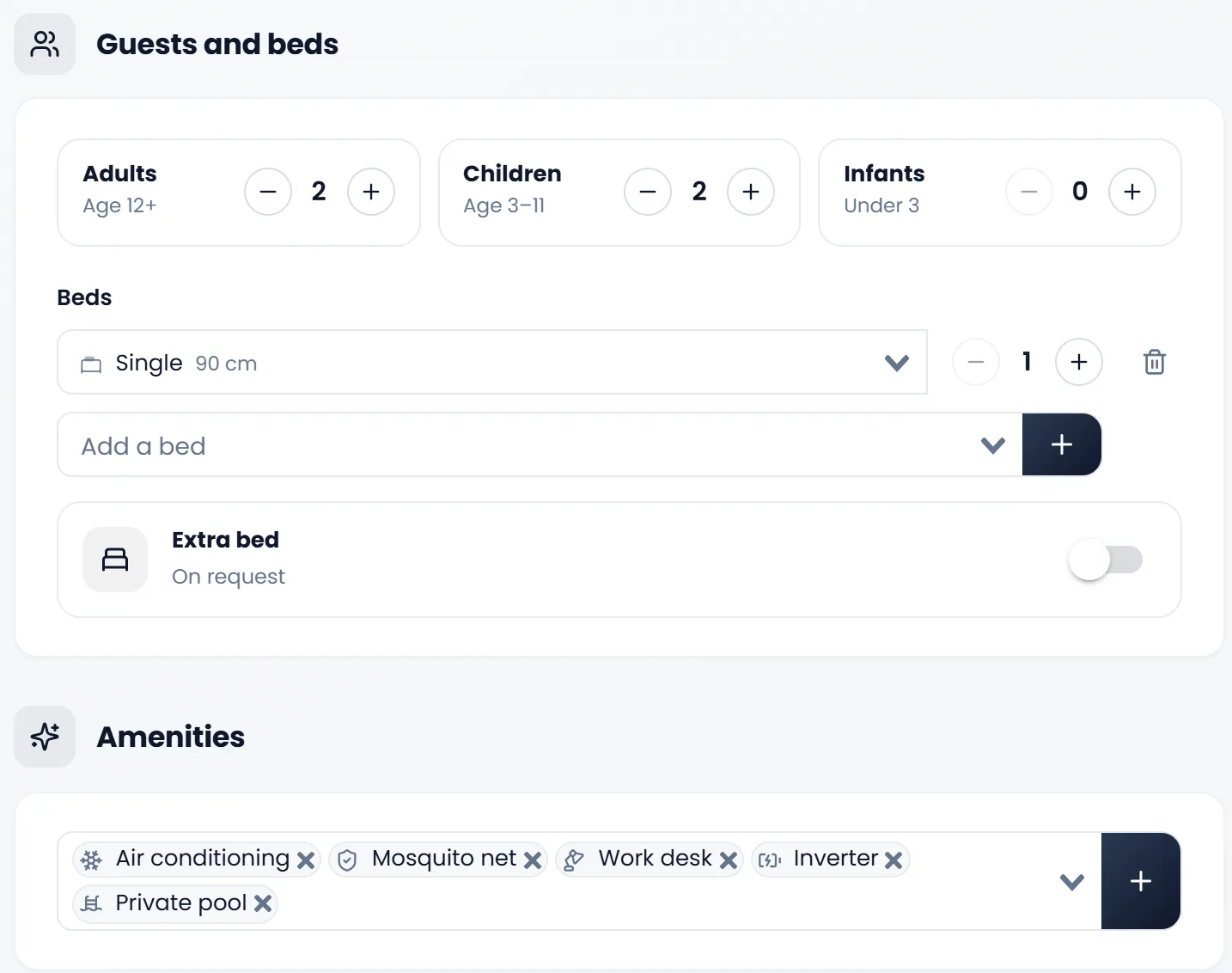
What guests see
The column beside the form shows the room type as a guest sees it, and its Listing score. The score rises as you add a description, beds and guests, amenities, prices and a cancellation policy, and photos. The steps left are listed under it.
The price strip under Prices shows each of the next 14 nights at the price a guest pays, weekends marked.
Sold on shows the travel sites this type is linked to. To link one, see Booking sites.
Change or delete one
Click the type in the list, change it and click Save room type. Delete this room type is at the bottom of the page.
List and Cards above the list switch how the types are shown. Cards show each type's cover photo.
What's next
Add the type's rooms: Rooms and housekeeping.
Still stuck?
Write to us and a person answers. If you already have a shop, Ask support inside it sends us the page you're on.
Contact usAsk your AI assistant
ChatGPT, Claude and Gemini can read every guide and walk you through it.
Set it up