




Names like these, in green, are pages inside your ArmPOS shop. Sign in to your shop to open them.
By the end you will know how to link ArmPOS to one or more Shopify stores, what each sync does, and what to check before you import orders.
This guide was written from ArmPOS's screens and code. It was not run: it needs a Shopify store of your own. Shopify comes with some plans only; without it, the page isn't in your menu.
What it does
- Products go both ways; stock only from ArmPOS to Shopify; customers both ways.
- Orders come from Shopify into ArmPOS, each as a sale that lowers stock.
- Syncs run when you click; Shopify also tells ArmPOS about new orders, customers and product changes once its webhooks are registered. A sale at your till doesn't change Shopify's stock until you click Sync inventory now.
In Shopify first
In your Shopify admin: Settings › Apps and sales channels › Develop apps › Create an app. Give it the Admin API scopes read_products, write_products, read_inventory, write_inventory, read_customers, write_customers, read_orders, write_orders and read_locations, install it, and copy the Admin API access token (shpat_…, shown once) and the API secret key (shpss_…).
Add the store
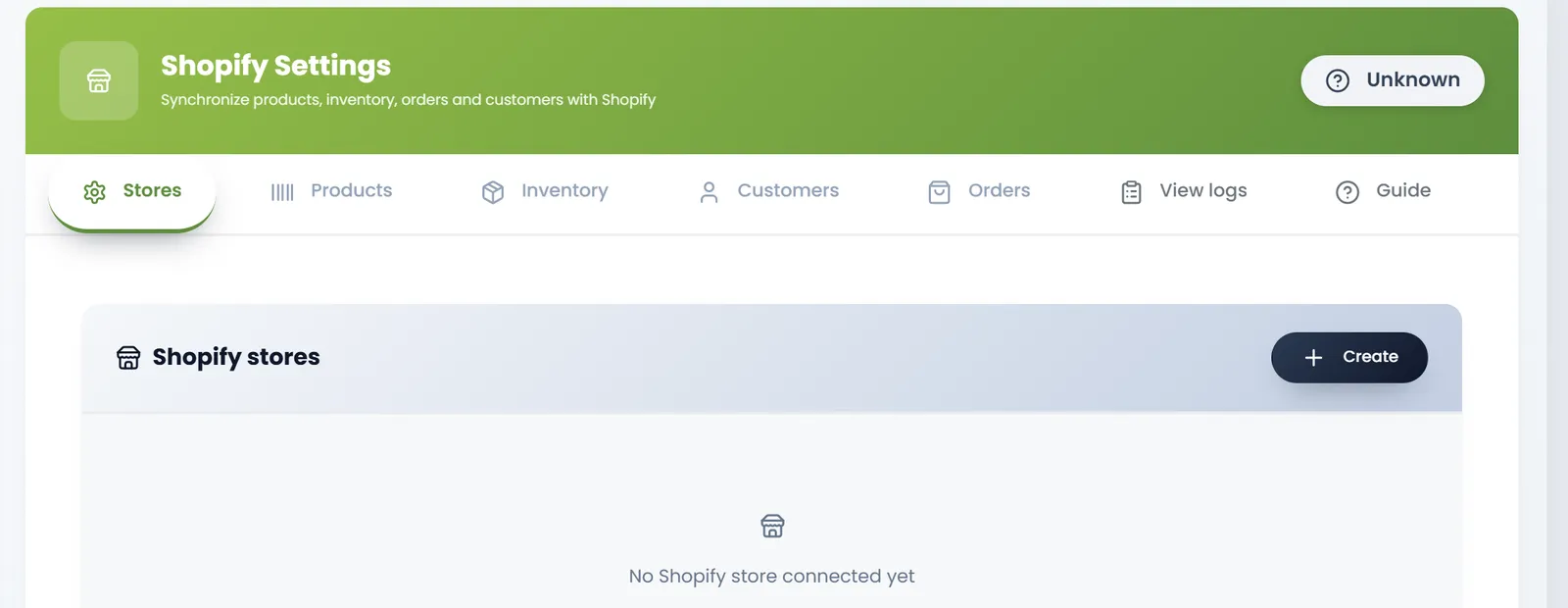
- Open Settings › Shopify Settings, tab Stores, and click Create.
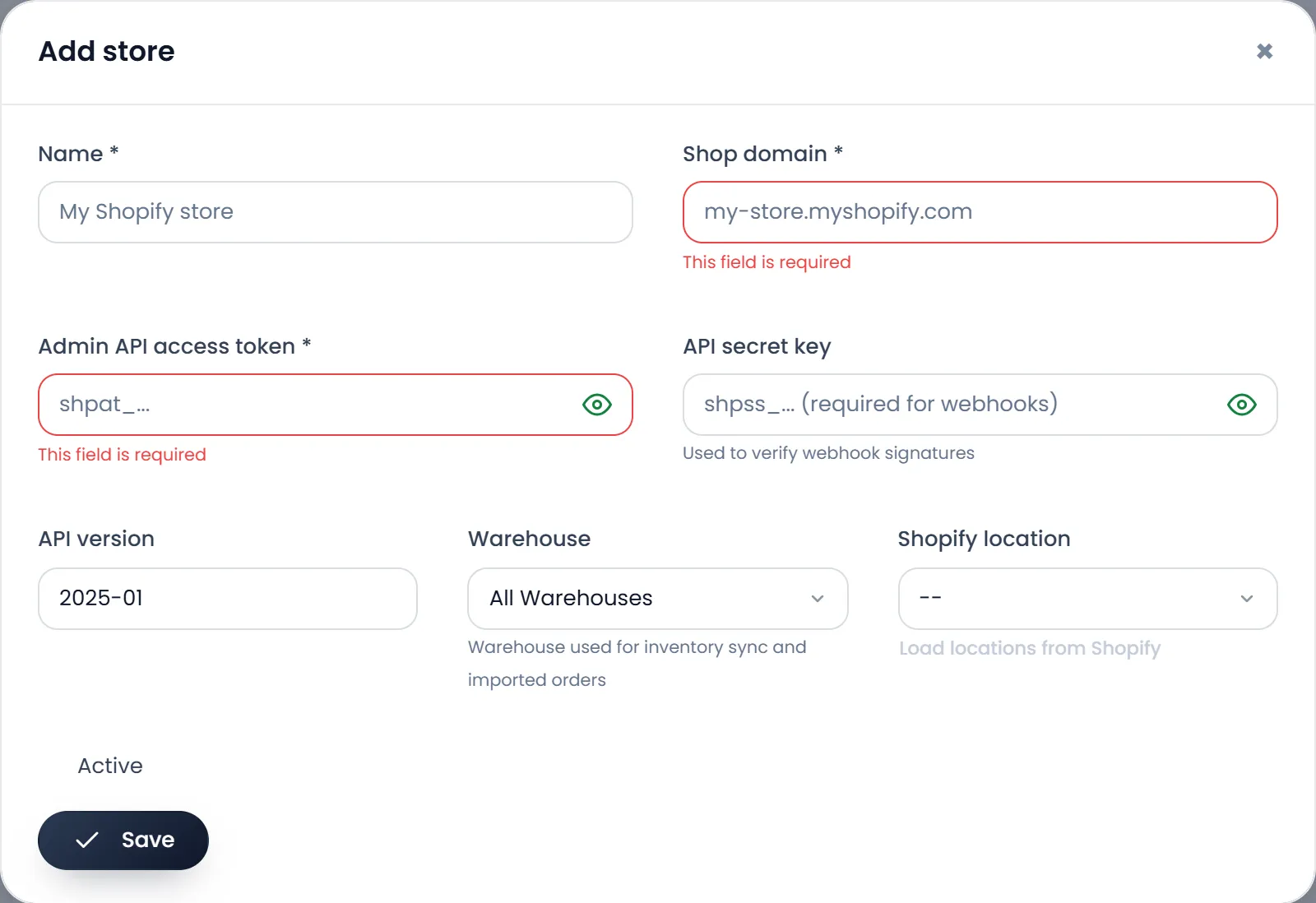
- Fill the Name, the Shop domain (your-store.myshopify.com) and the Admin API access token. All three are required.
- Add the API secret key. It is needed for webhooks.
- Pick the Warehouse your stock and Shopify's orders use, or leave All Warehouses.
- Check no box was filled in by your browser, and click Save.
- Open the store again with Edit, click Load locations from Shopify, pick the Shopify location, and save.
- Click Test connection, then Register webhooks on the store's row. Your shop must be reachable on the internet over HTTPS for webhooks to arrive.
The first sync, in this order
- Products › Pull from Shopify: links the products you both have by SKU and brings the rest in.
- Products › Push to Shopify: sends your products not yet in Shopify (Only products not synced yet stays ticked).
- Inventory › Sync inventory now: sets Shopify's stock to ArmPOS's.
- Customers: push and pull. Customers need an email or a phone number.
- Orders › Import orders now: brings Shopify's orders in as sales.
- Import orders now brings in Shopify's whole order history, and each order lowers today's stock. Run it once your stock is right, and expect old orders to appear.
- Refunds and cancellations in Shopify don't give stock back in ArmPOS: adjust the stock yourself.
- Deleting the store, or changing its domain, forgets which orders came in: the next import makes them again.
- Unticking Only products not synced yet overwrites the products in Shopify with ArmPOS's.
What's next
WooCommerce, if you also sell there.
Still stuck?
Write to us and a person answers. If you already have a shop, Ask support inside it sends us the page you're on.
Contact usAsk your AI assistant
ChatGPT, Claude and Gemini can read every guide and walk you through it.
Set it up