




Names like these, in green, are pages inside your ArmPOS shop. Sign in to your shop to open them.
By the end you will know how to link ArmPOS to a WooCommerce shop, what each sync sends which way, and what to check before your first one.
This guide was written from ArmPOS's screens and code. It was not run: it needs a WooCommerce shop of your own. WooCommerce comes with some plans only; without it, the page isn't in your menu.
What it does
- From ArmPOS to WooCommerce: products, stock, categories, brands and customers.
- From WooCommerce to ArmPOS: products, categories, brands, customers, and orders, which become sales (WO- and the order number).
Every sync starts with a button. Nothing runs by itself: a sale at your till doesn't change WooCommerce's stock until someone clicks Sync stock now. Products are matched by their SKU, which is the product Code in ArmPOS: keep them the same on both sides.
Connect
In WordPress first: WooCommerce › Settings › Advanced › REST API, Add key with Read/Write, and copy the Consumer key and Consumer secret.
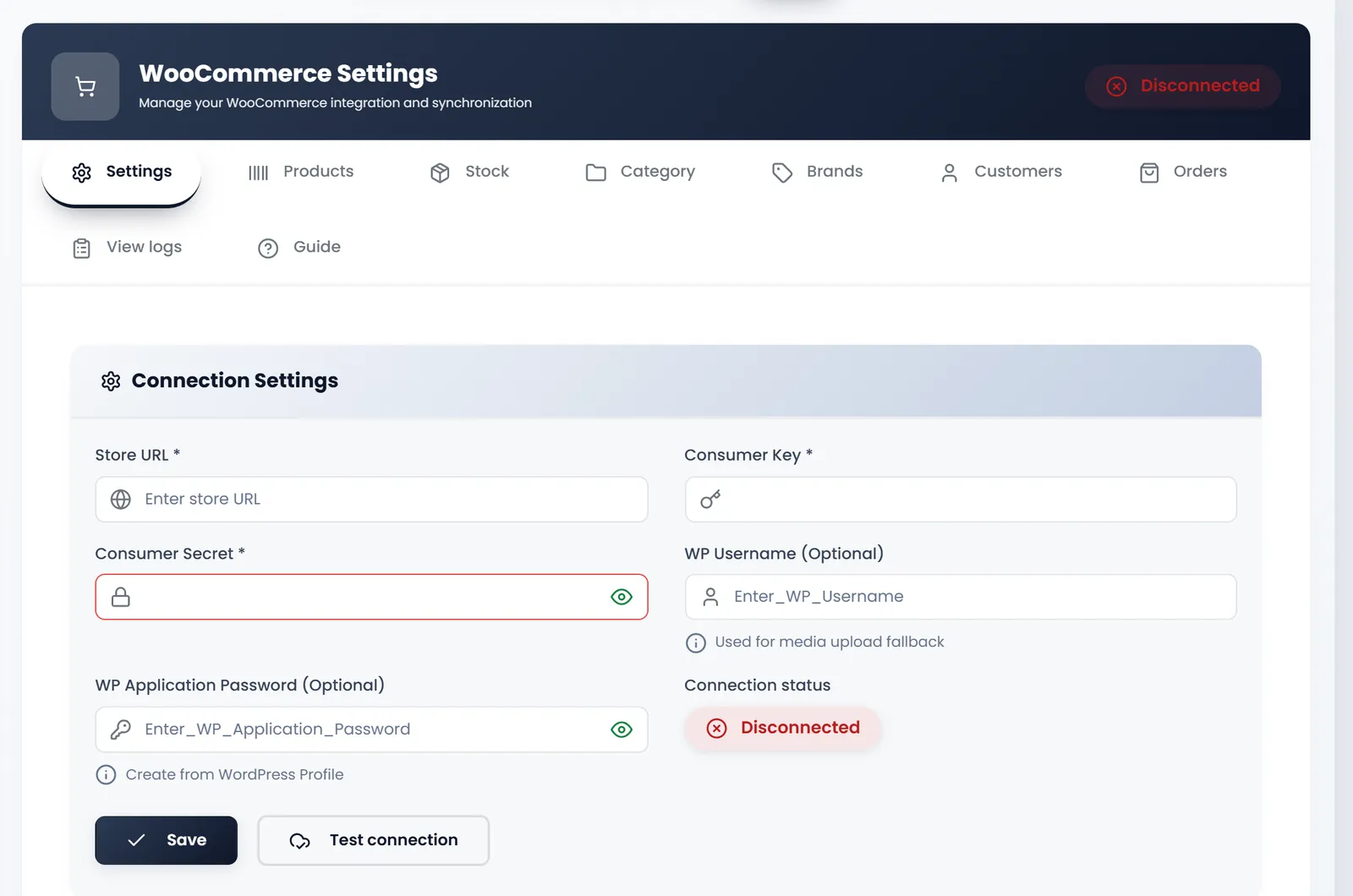
- Open Settings › WooCommerce Settings, tab Settings.
- Type the Store URL: your site's address, starting https:// and without a slash at the end.
- Paste the Consumer Key and the Consumer Secret.
- Add a WP Username and WP Application Password only if you want product pictures sent. The password is made in WordPress under Users › Profile › Application Passwords.
- Check no box was filled in by your browser, then click Save, then Test connection. The badge turns Connected.
Changing the Store URL or the keys later clears every link between your products and WooCommerce's.
The first sync, in this order
- Category and Brands tabs: send them, or bring WooCommerce's in.
- Products tab: Run manual sync now sends your products (only the ones not sent yet when Sync only unsynced is on). The other side, Sync Products from WooCommerce, brings WooCommerce's in.
- Stock tab: Sync stock now sets WooCommerce's stock to ArmPOS's, all warehouses added up.
- Customers tab: customers need an email to be sent; they are matched by email.
- Orders tab: Sync WooCommerce Orders to Stocky brings orders in as sales.
View logs shows what each sync did, with its errors.
Read what each button overwrites before you click it; no button asks you to confirm.
- Bringing products in overwrites the matching ArmPOS products: name, price, cost (set to the price), picture, and the default warehouse's stock.
- Sending products overwrites the matching WooCommerce products and publishes drafts.
- Bringing orders in takes every WooCommerce order, past ones too. A completed order takes stock; an order with a product ArmPOS doesn't know is skipped.
- A sale deleted in ArmPOS comes back at the next order sync.
What's next
To sell on your own ArmPOS store instead, see Set up your online store.
Still stuck?
Write to us and a person answers. If you already have a shop, Ask support inside it sends us the page you're on.
Contact usAsk your AI assistant
ChatGPT, Claude and Gemini can read every guide and walk you through it.
Set it up