




Names like these, in green, are pages inside your ArmPOS shop. Sign in to your shop to open them.
By the end you'll have booked a guest into a room, from the calendar or with New booking, with or without a deposit.
The calendar
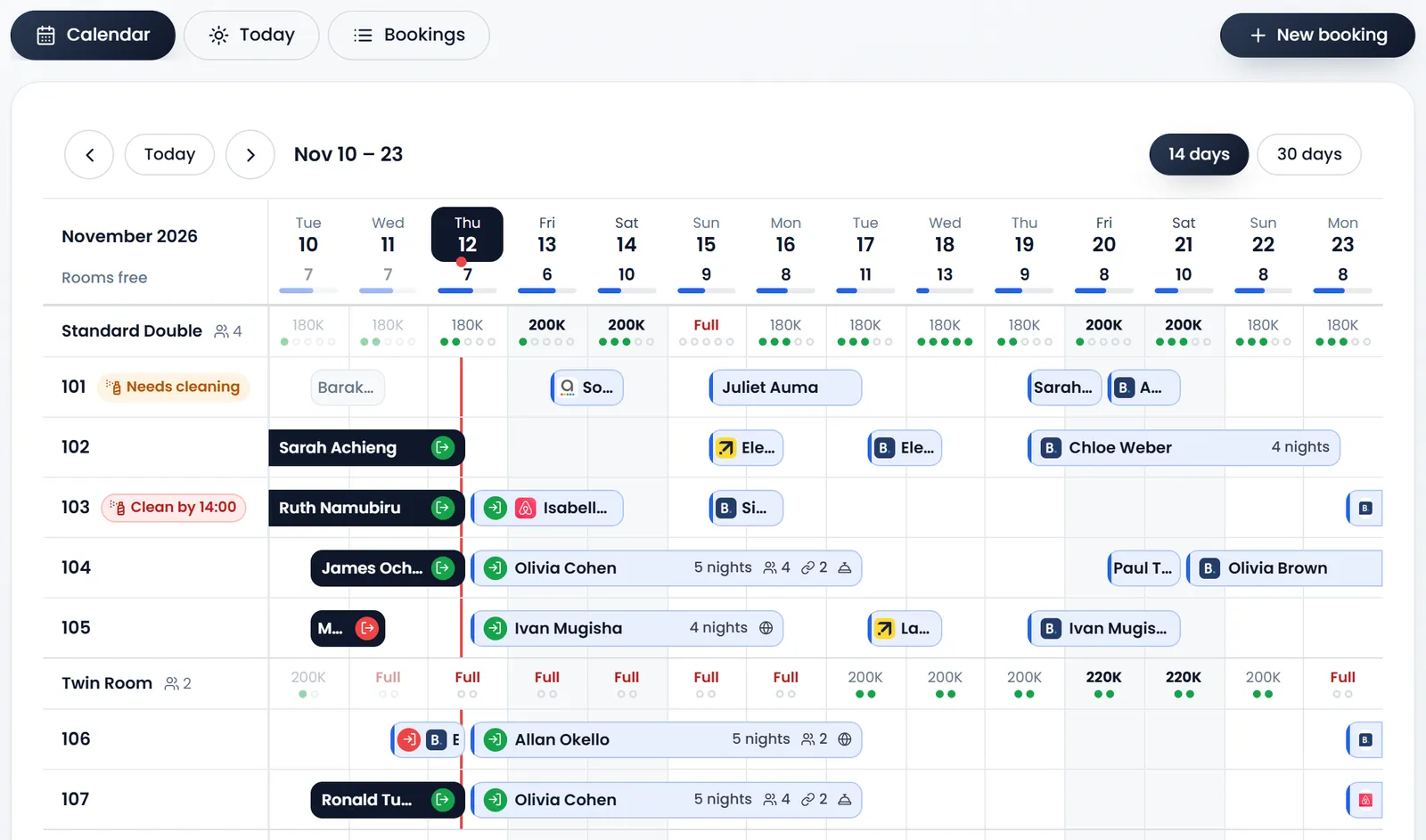
Rooms are grouped by type, with each type's free rooms and price for every night. A booking is a bar across its nights, with the guest's name. A site's logo marks a booking from a travel site. What the colours mean explains the rest.
Move with the arrows and Today, and show 14 days or 30 days.
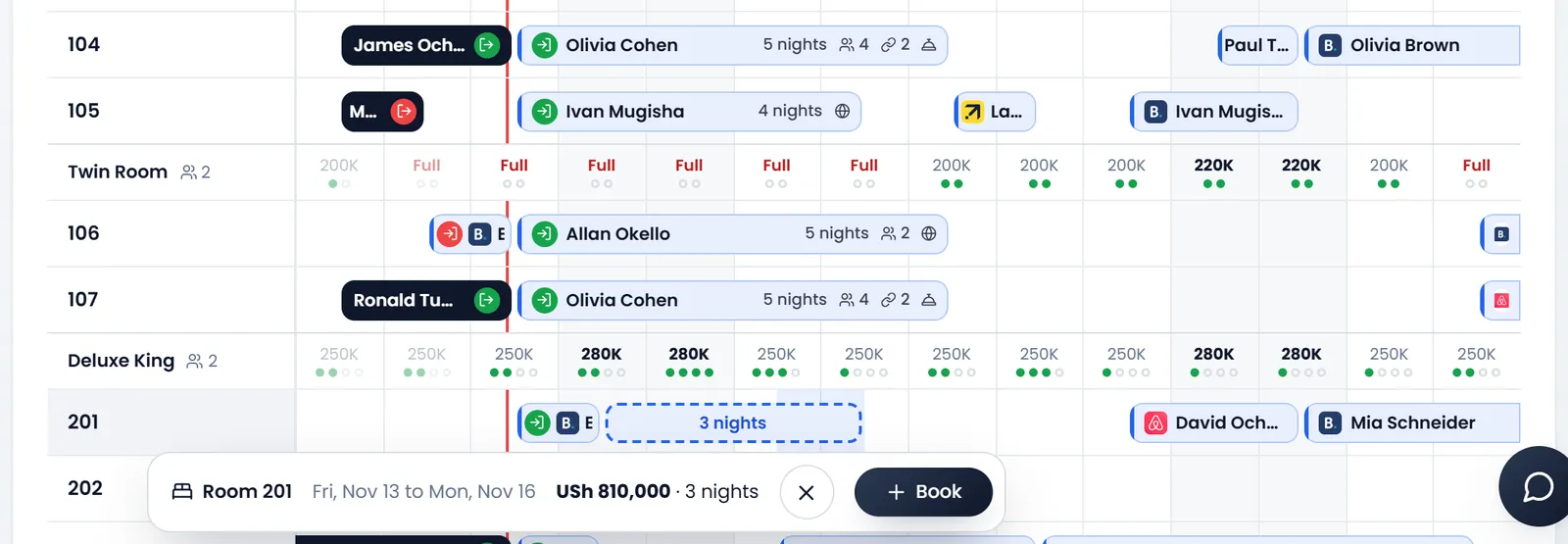
Book from the calendar
- Click the first night on a free room.
- Click the last night. A bar at the bottom shows the room, the dates, the nights and the price.
- Click Book. New booking opens with the room and dates filled in.
New booking, step by step
Click New booking at the top of any desk page, or Book on the calendar.
- Stay. Set Check-in and Check-out (or the Nights), the Adults and Children. Free rooms for … nights lists every room free on all of them, by type, with the price for the stay. Click a room to pick it. You can pick more than one.
- Guest. Pick the Nationality, type the Guest's name, and a WhatsApp number or an Email. A guest who stayed before is found by name, number or email: pick them from the list.
- Registration card, if your property asks for one. Fill it in with the guest, or leave the agreement unticked and the guest finishes it on their link.
- Payment. Choose the Deposit: No deposit, The first night, or A percent of the stay. Tick The deposit is paid if the guest paid it now. Pick who Booked by (At the desk, Phone, Walk-in, WhatsApp, Email), and Add a note if you need one.
- Click Book. If the guest is standing in front of you, tick The guest is here: check them in now first.
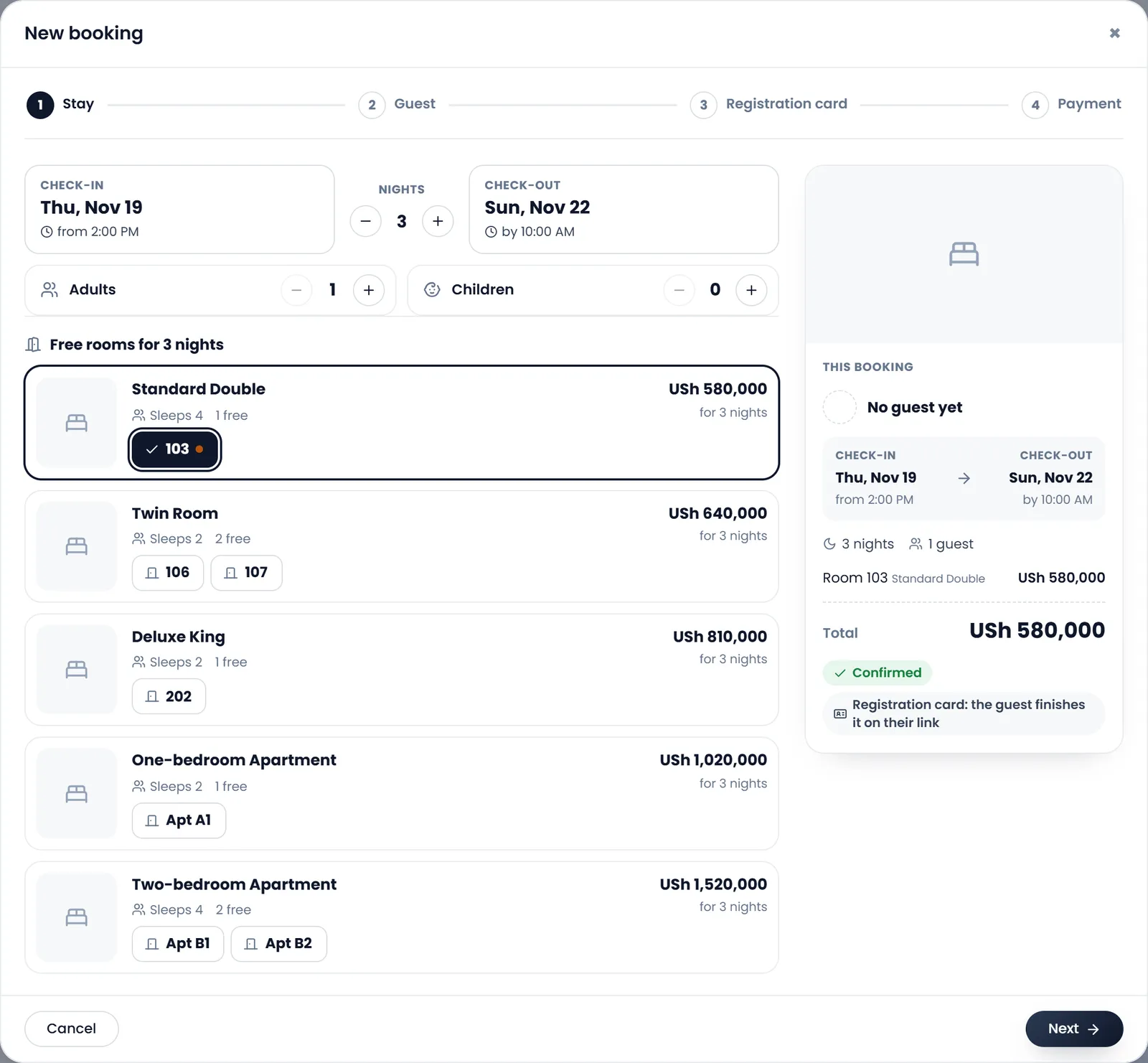
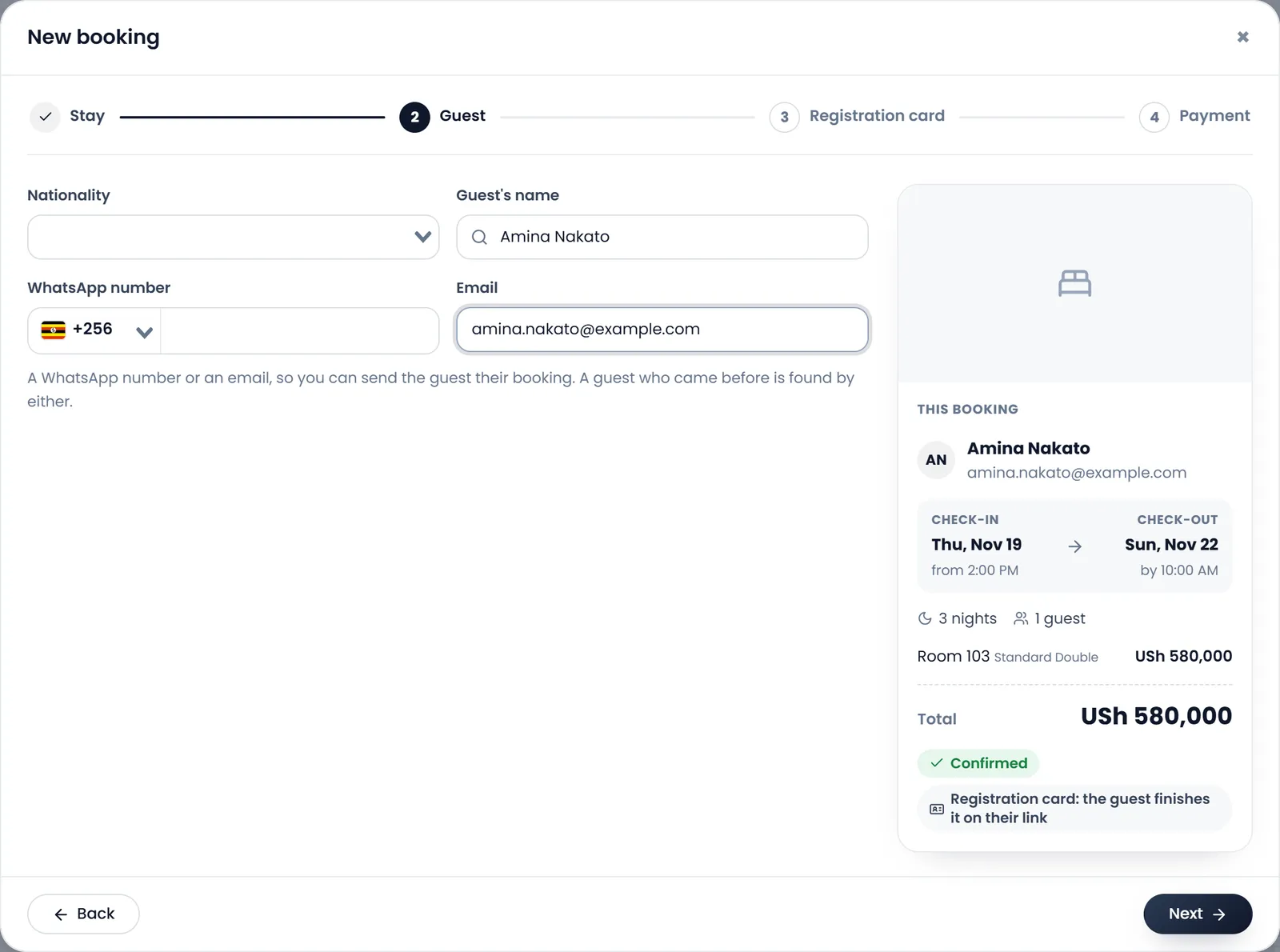
This booking, on the right, sums it up as you go: the guest, the dates, the rooms and the total.
Deposits
A booking with a deposit due is Waiting for deposit. Its rooms are held for the hours set on Property (24 to start), then let go. When the guest pays, open the booking and take the deposit on its bill: the booking becomes Confirmed. Confirm without a deposit confirms it without taking one.
A booking with no deposit is Confirmed at once.
After booking
The desk shows Booked: and the booking's code. If the guest gave a WhatsApp number, open the booking and click Send on WhatsApp: a message with the dates, the rooms, the total and any deposit due, ready to send.
A booking from a travel site arrives on the calendar by itself. See Booking sites.
What's next
Today at the desk: check guests in and out.
Still stuck?
Write to us and a person answers. If you already have a shop, Ask support inside it sends us the page you're on.
Contact usAsk your AI assistant
ChatGPT, Claude and Gemini can read every guide and walk you through it.
Set it up