




Names like these, in green, are pages inside your ArmPOS shop. Sign in to your shop to open them.
A warehouse is a place you keep and sell stock from: your shop floor, a store room, a second branch. Locations are the racks and shelves inside it. By the end you will know how to set up both, so staff can find any product.
Your warehouse
A new shop has one warehouse. Your plan sets how many warehouses you can have.
- Open Settings › Warehouse. Each warehouse shows its Name, Phone, Country, City, Email and Zip Code.
- Click Edit in its row to change its details. Name is required; the rest is optional.
- Click Submit.
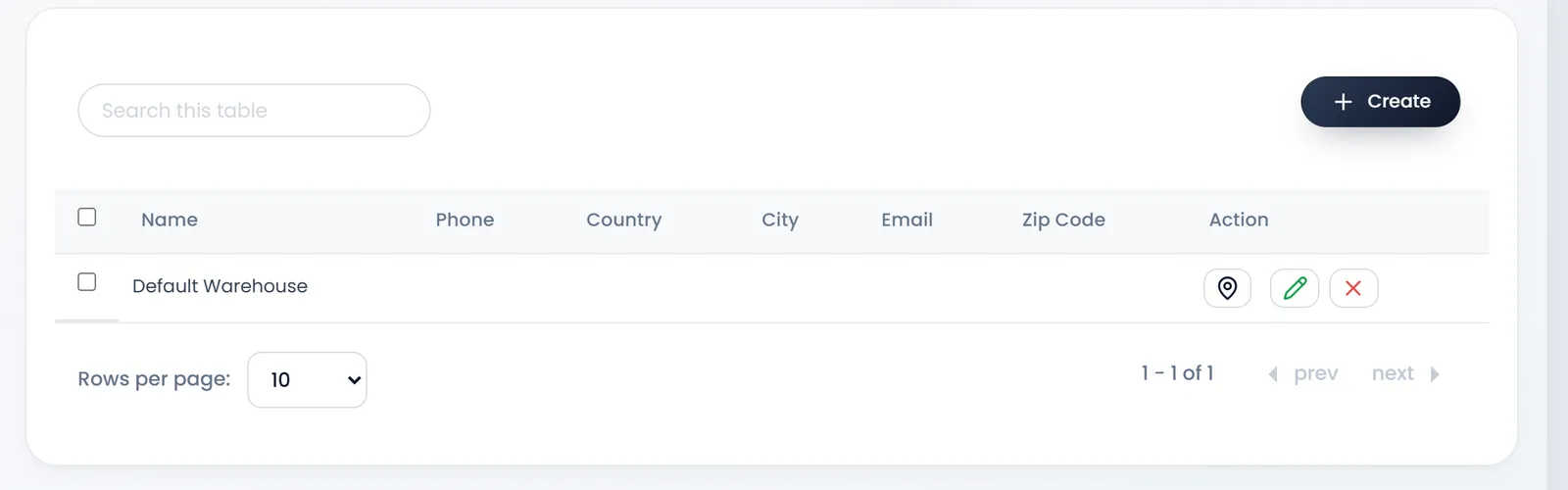
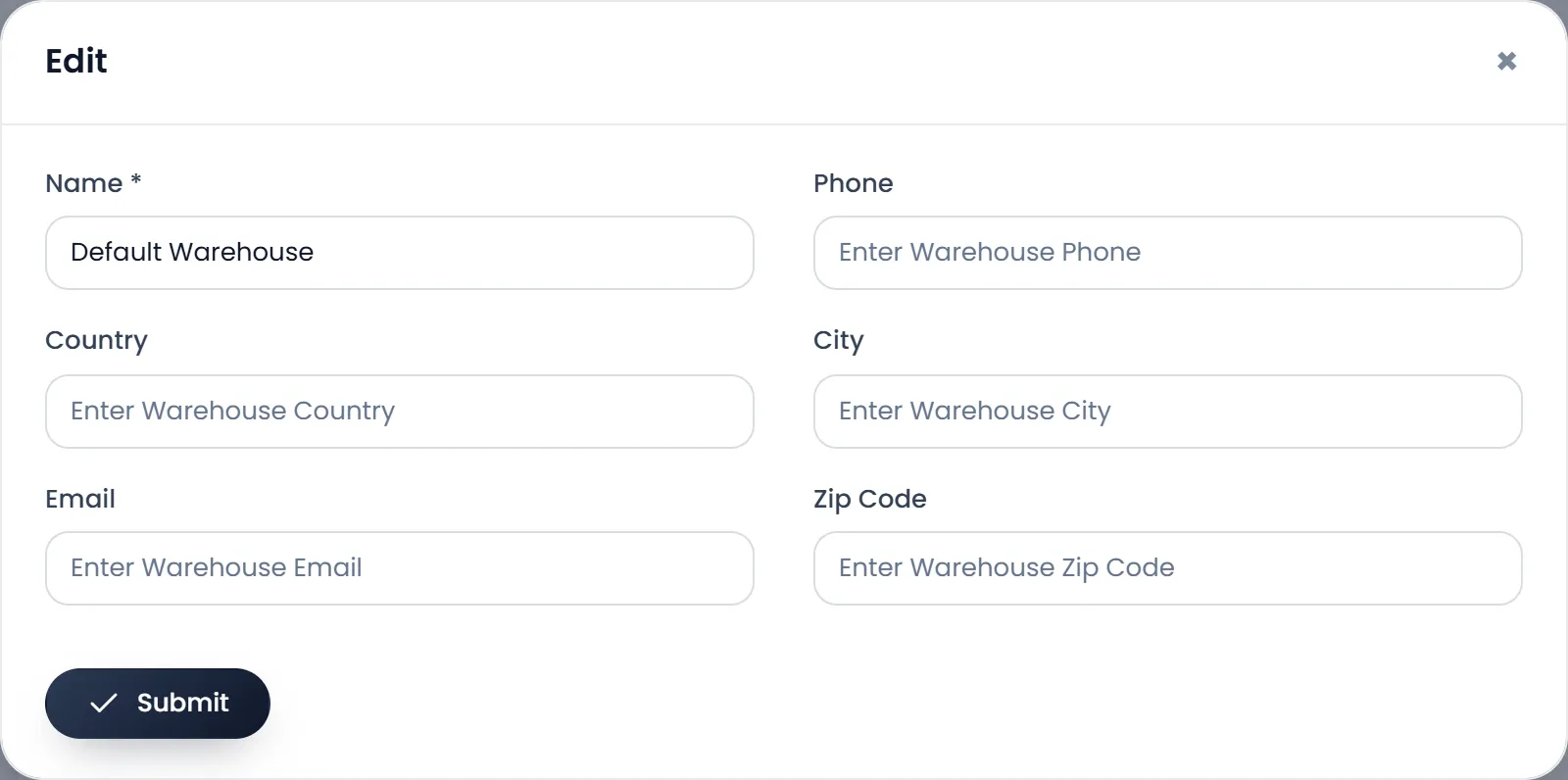
Create adds another warehouse, when your plan allows more than one. Each one has its own stock; the POS sells from the one you pick in its top bar, and transfers move stock between them.
With more than one warehouse, set Default Warehouse in Settings › System Settings, on the Defaults tab, so the POS opens on that one.
Racks and shelves
A location is a named place inside a warehouse, such as a shelf or a rack.
- Open Settings › Warehouse Locations (or Locations in a warehouse's row) and click Create.
- Choose the Warehouse. It is required.
- Enter the Rack/Location Code (required), such as A1, and a Location Name, such as Front shelf.
- Leave it Active and click Submit.
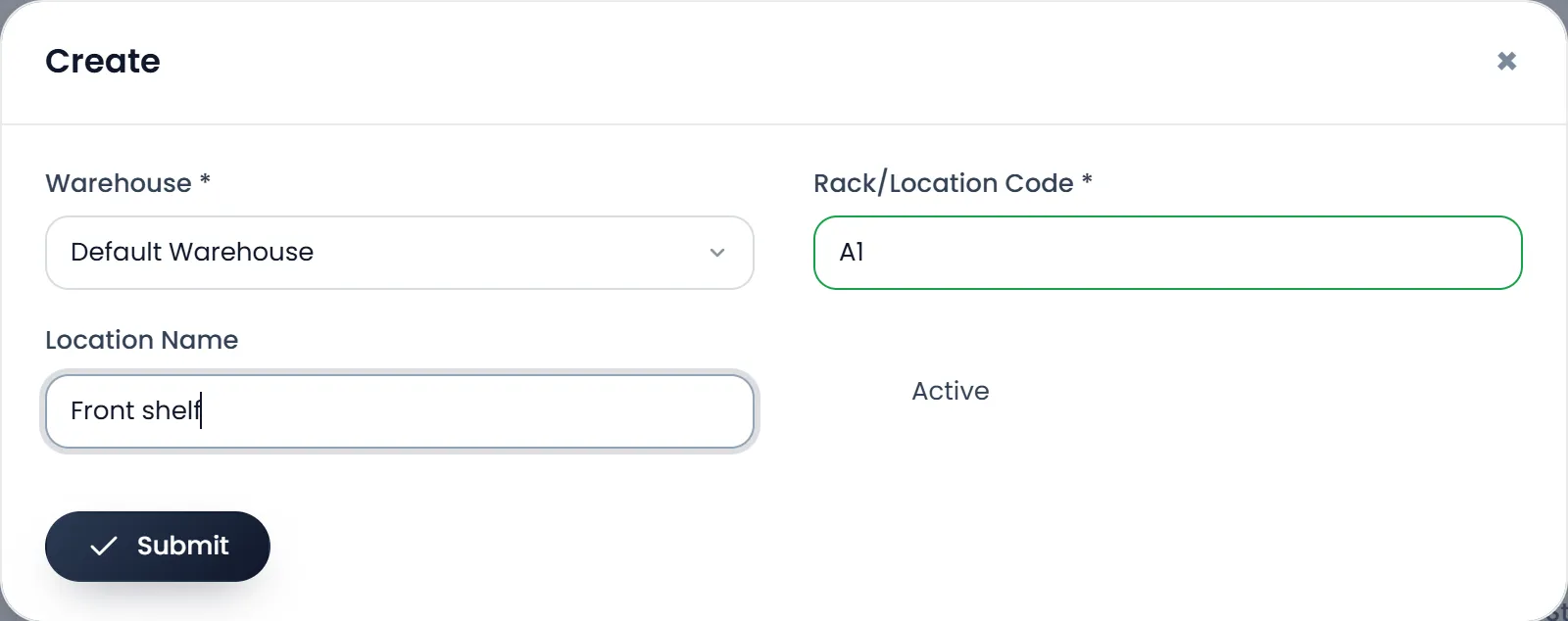
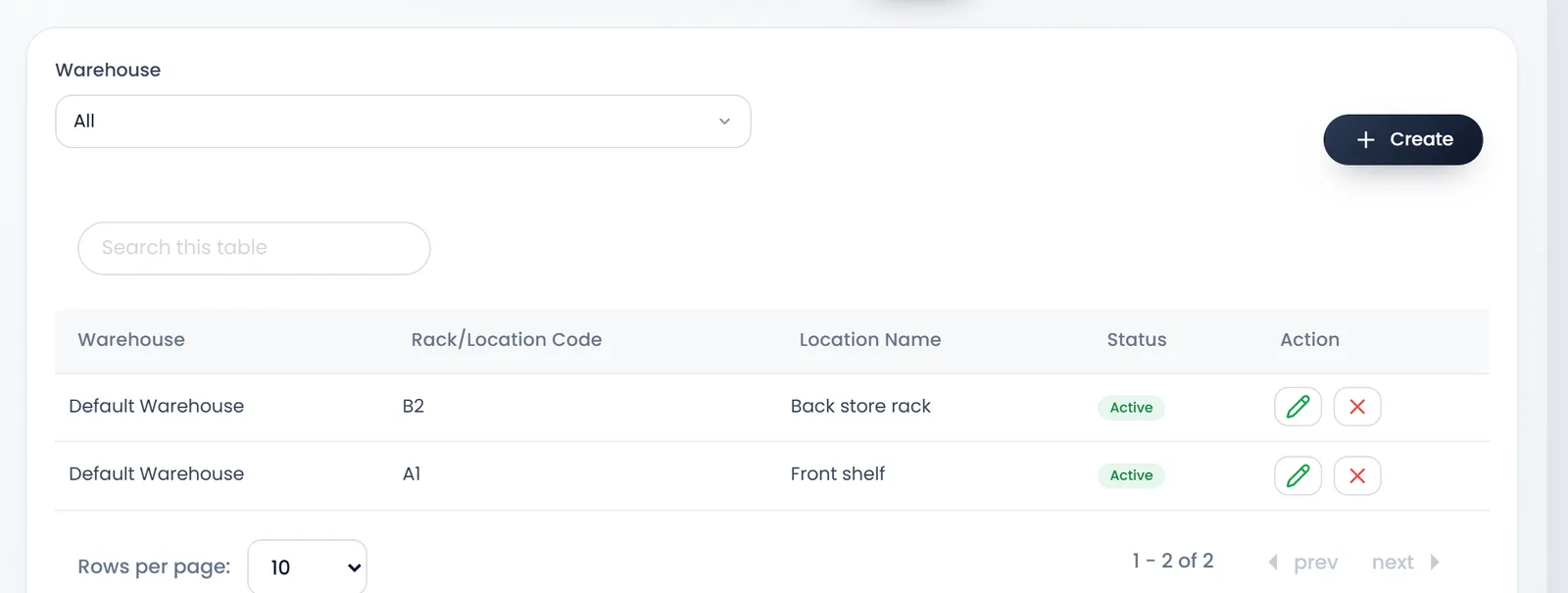
To say where a product is kept, open the product's Edit page and fill Internal Location (Rack/Shelf). Reports › Internal Location Report then lists products by location.
What's next
Still stuck?
Write to us and a person answers. If you already have a shop, Ask support inside it sends us the page you're on.
Contact usAsk your AI assistant
ChatGPT, Claude and Gemini can read every guide and walk you through it.
Set it up