




Names like these, in green, are pages inside your ArmPOS shop. Sign in to your shop to open them.
By the end you will know how to connect your WhatsApp Business number, which messages ArmPOS sends your customers by itself, and how to change their words.
This guide was written from ArmPOS's screens and code and was not run: it needs a WhatsApp Business account with Meta. Your plan sets how many WhatsApp messages you can send each month. If the page says WhatsApp is disabled by the platform administrator, ArmPOS has it switched off for now: you can set it up, but nothing is sent until it is on.
What it does
ArmPOS sends a WhatsApp text from your own business number when:
- a sale is saved on Sales › Add sale (Invoice created (new sale)), and
- a payment is added to a sale (Payment received).
Sales made at the POS don't send a message today. The customer needs a phone number on their record.
Connect your number
In Meta first: a Meta app with the WhatsApp Cloud API, its Phone Number ID and a permanent Access Token.
- Open WhatsApp › Settings.
- Fill the Phone Number ID and the Access Token. The WhatsApp Business Account ID and App Secret are optional.
- Set the Default Country Code, such as 256. It replaces the 0 at the start of local numbers.
- Switch on the Automated Messages you want, then click Save.
- Click Test Connection. Connection Status must turn Connected: no message is sent until it does.
The Webhook URL and Webhook Verify Token would let Meta tell ArmPOS when a message is delivered and read. The address shown doesn't answer Meta yet, so leave them for now: messages still go out, and Message Logs shows them as sent.
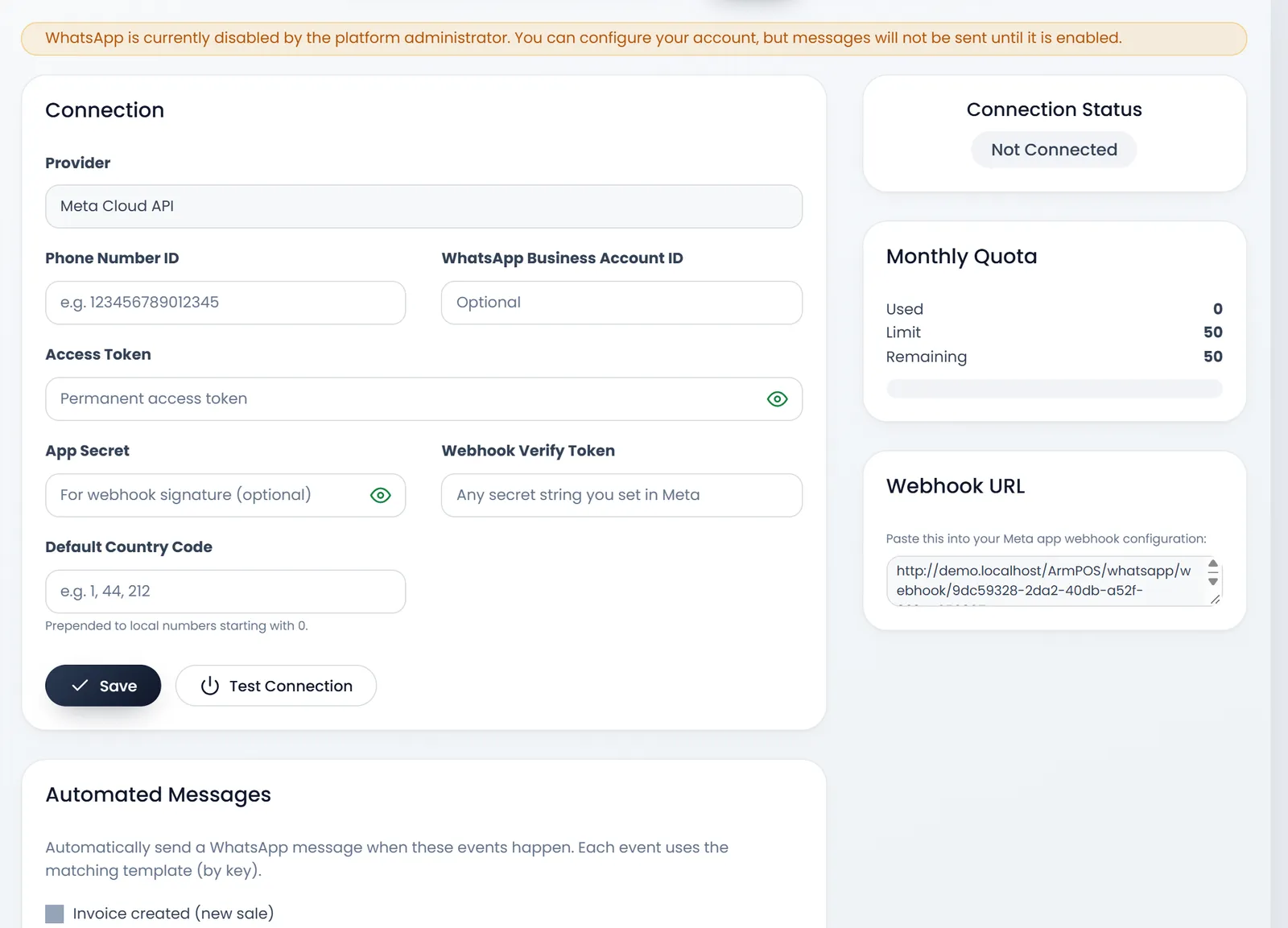
Monthly Quota shows the messages used and left this month.
The messages' words
WhatsApp › Templates holds the texts. Each automatic message uses the template with its Key: invoice_created for a new sale, payment_received for a payment.
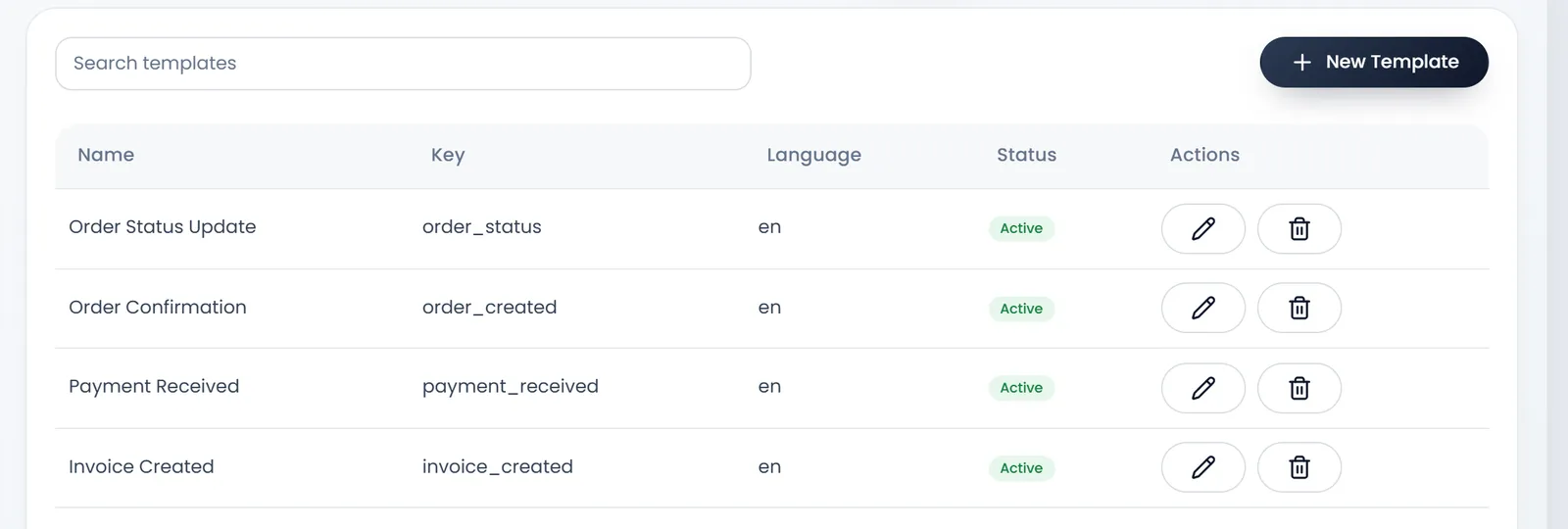
Open a template to change its Message Body. Click a variable to add it: {{customer_name}}, {{invoice_number}}, {{total_amount}}, {{company_name}}, {{payment_status}} and {{date}} are filled in; {{order_status}} isn't yet. The Preview shows the result.
Renaming a template's key, deleting the template or switching it to inactive quietly stops that message. Deleting a template asks no question.
WhatsApp › Message Logs lists each message with its Status and any Error.
What's next
For texts by SMS, see Email and SMS settings.
Still stuck?
Write to us and a person answers. If you already have a shop, Ask support inside it sends us the page you're on.
Contact usAsk your AI assistant
ChatGPT, Claude and Gemini can read every guide and walk you through it.
Set it up