




Names like these, in green, are pages inside your ArmPOS shop. Sign in to your shop to open them.
By the end you will know how a shop in Saudi Arabia registers ArmPOS with ZATCA's Fatoora system, so its invoices are reported and cleared as the law asks.
This is for shops registered for VAT in Saudi Arabia. It was written from ArmPOS's screens and code and was not run against ZATCA. ZATCA E-Invoicing comes with some plans only.
What it does
Once set up, each sale becomes a signed tax invoice and each sale return a credit note, sent to ZATCA's Fatoora gateway: reported for a sale to a consumer (simplified invoice), cleared for a sale to a business with a VAT number (standard invoice). POS sales are always simplified. A sale whose customer has a 15-digit VAT number starting and ending with 3 is standard. The receipt carries ZATCA's QR code.
Before you start
- In Settings › System Settings, tab ZATCA: the Company Name (Arabic), the VAT Number (15 digits, starting and ending with 3) and Enable ZATCA QR on Sales Receipts.
- Your CRN and national address.
- A one-time password (OTP) from the Fatoora portal: fatoora.zatca.gov.sa › Onboard New Solution Unit/Device.
Set it up
- Open Settings › ZATCA E-Invoicing, tab Configuration.
- Pick the Environment: Sandbox to try, Simulation, then Production for real invoices. Changing it later means onboarding again.
- Fill the EGS Unit / CSR Details (Common Name, Organization Name, Branch, CRN, Business Category, Supported Invoice Types) and the National Address (Building No. has 4 digits, Postal Code 5).
- Tick Enable ZATCA Phase 2 and Auto-submit new invoices, and click Submit.
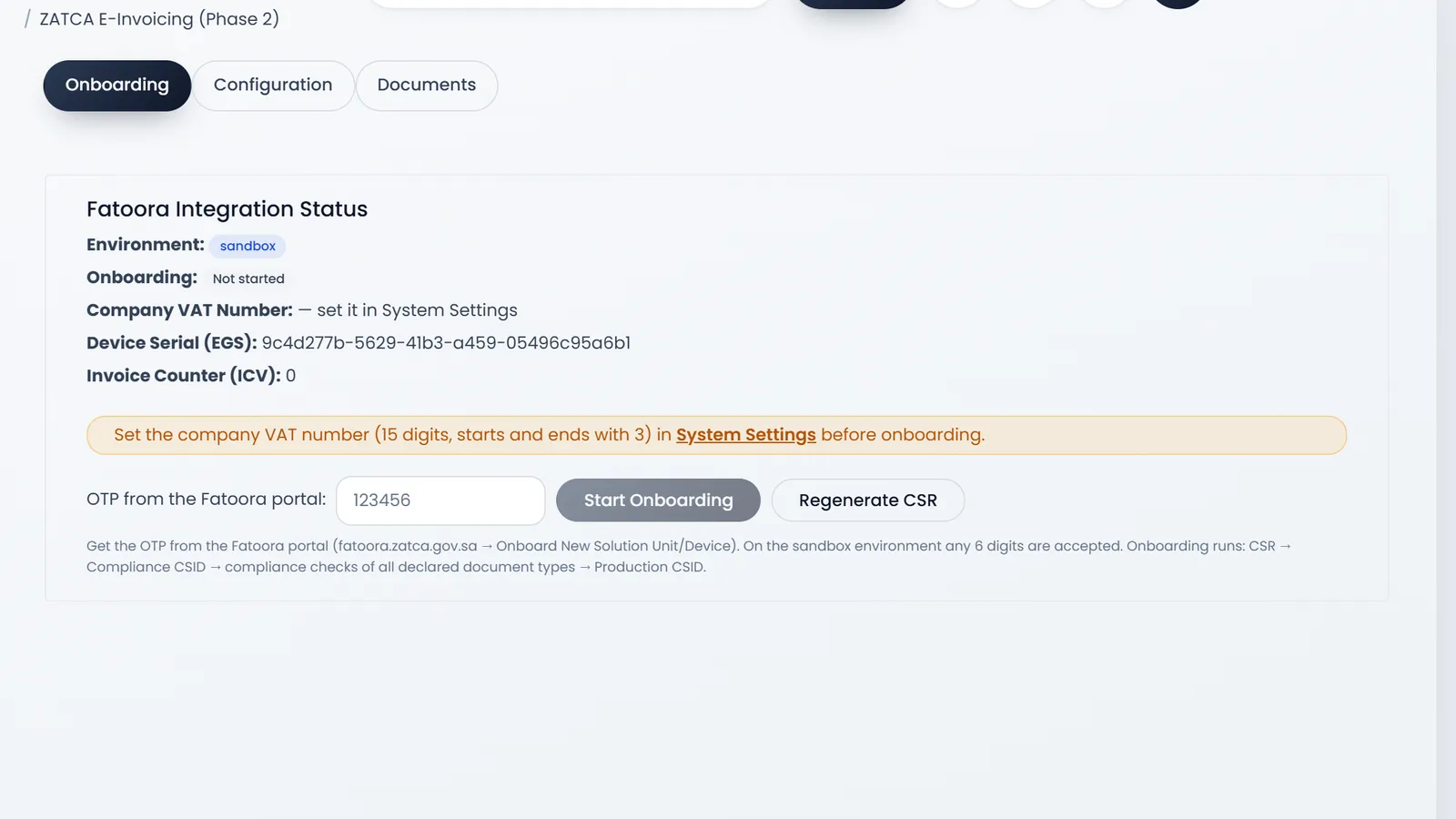
- Open the Onboarding tab, type the OTP from the Fatoora portal, and click Start Onboarding. ArmPOS makes its key, gets its certificates and runs ZATCA's compliance checks. The status ends on Ready (Production CSID active). On the sandbox any 6 digits are accepted.
Follow what was sent
The Documents tab lists every invoice and credit note with its type, counter, Status (Reported, Cleared, Failed or Pending) and ZATCA's remarks. XML downloads the signed document; Retry sends a failed one again.
- On Production, invoices go to ZATCA for real and can't be withdrawn: editing or deleting a sale changes nothing there. Correct a sale with a return, which sends a credit note.
- Keep Auto-submit on: in manual mode there is no button to send a pending invoice.
- A refused document is marked Failed and the sale stays; the people who manage settings are told.
What's next
Receipt and POS settings has Show ZATCA QR and the bilingual receipt layout.
Still stuck?
Write to us and a person answers. If you already have a shop, Ask support inside it sends us the page you're on.
Contact usAsk your AI assistant
ChatGPT, Claude and Gemini can read every guide and walk you through it.
Set it up