




Names like these, in green, are pages inside your ArmPOS shop. Sign in to your shop to open them.
By the end you will know which report shows what each person in your team did, when you signed in, how many hours your staff worked, and what went wrong behind the scenes.
All of them are under Reports in the sidebar.
What each person did
Users Report lists everyone who can sign in with how many documents they made: Total Sales, Total Purchases, Total Quotations, Total return sales, Total return purchases, Total transfers and Total adjustments. Scroll the table sideways for the last columns.
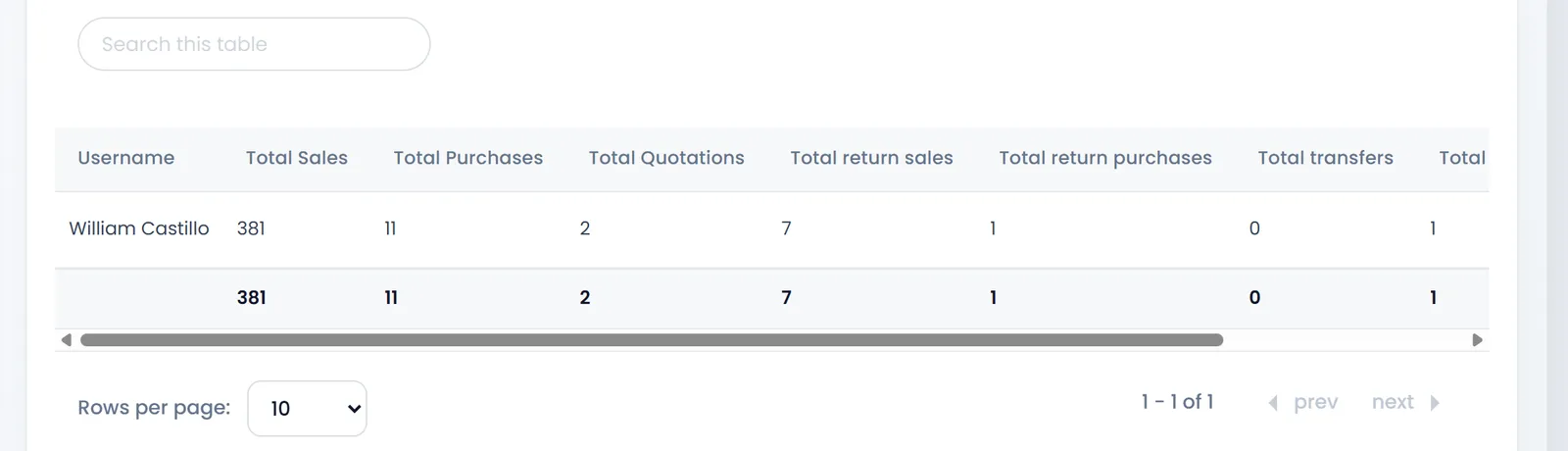
Reports at the end of a row opens that person's own report, on tabs: their Sales, Quotations, Purchases, returns, Stock Transfers and Adjustment. To see who sold how much money, use Seller Report (see Sales reports).
When you signed in
Login Activity Report lists your own sign-ins: the Device / Browser, the IP Address, the Login date & time, the Last activity and whether the session is still active or Expired. Check it if you think someone else used your account, then change your password (see Your profile, password and sign-in security).
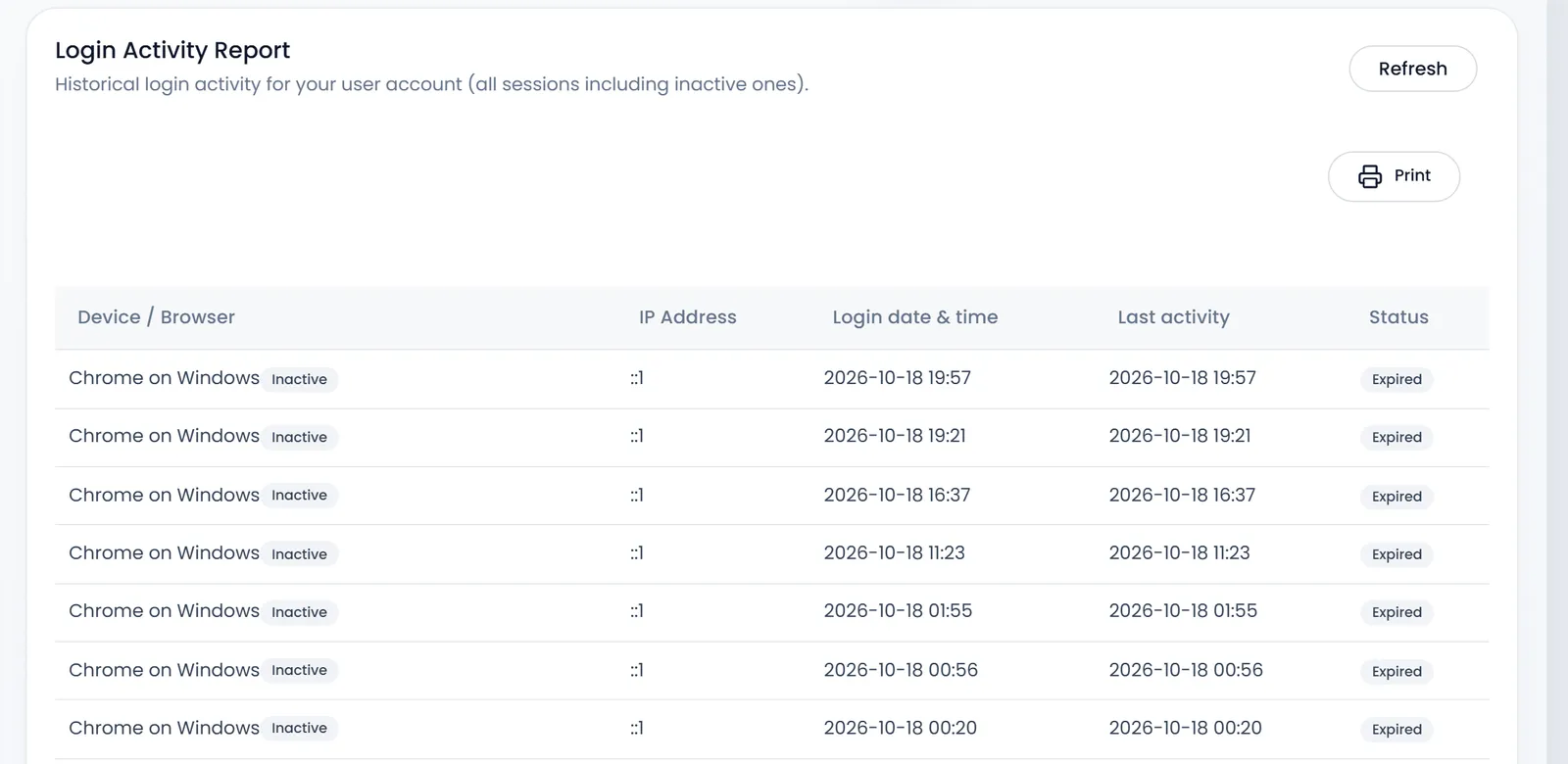
Hours worked
Attendance summary adds up the hours your staff worked, from the attendance you record under HRM. Choose Daily or Monthly, a Date, a Company or an Employee, and click Filter. It needs the HR part of ArmPOS: see Attendance.
What went wrong
Error Logs lists errors the system recorded for your shop, with the Context, the Message, the Details and when it Occurred At. An empty list is good news. If something keeps failing, send the line to our support team with Ask our support team.
What's next
Give each person only what they need with Roles and permissions.
Still stuck?
Write to us and a person answers. If you already have a shop, Ask support inside it sends us the page you're on.
Contact usAsk your AI assistant
ChatGPT, Claude and Gemini can read every guide and walk you through it.
Set it up